
After the keynote, Odoo Experience 2026 featured sessions on Reporting, Bank synchronization and Hidden gems. Below is what relates to accounting and reporting, seen through the Contaldia lens (Spain first), with all the screenshots from those notes. It is still not “Odoo 20 in production in Spain”: it is what we saw in Brussels.
Reporting · Bank · Hidden gems
Brussels, 24–26 Sep
a user report in 20
(2.5 s in 19, session demo)
16:00 · Contaldia course
live walkthrough
Bank: more connectors, duplicates and pay from the bill
In 20 there are more connected institutions (the session slide says 200+, in 50+ countries). In Spain we will still check bank by bank: we do not treat CaixaBank, Sabadell or BBVA as covered until we try it on a live database.
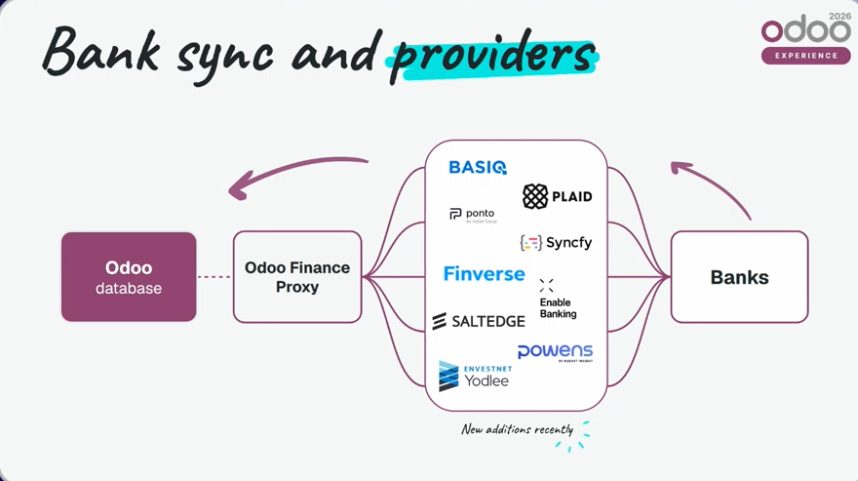
Bank synchronization: more connectors. Figures from the OX 2026 slide, not a Contaldia count.
If the statement arrives short, Fetch Missing Transactions recovers lines. If duplicates slipped in, Find duplicate transactions flags them and you can delete them by hand.
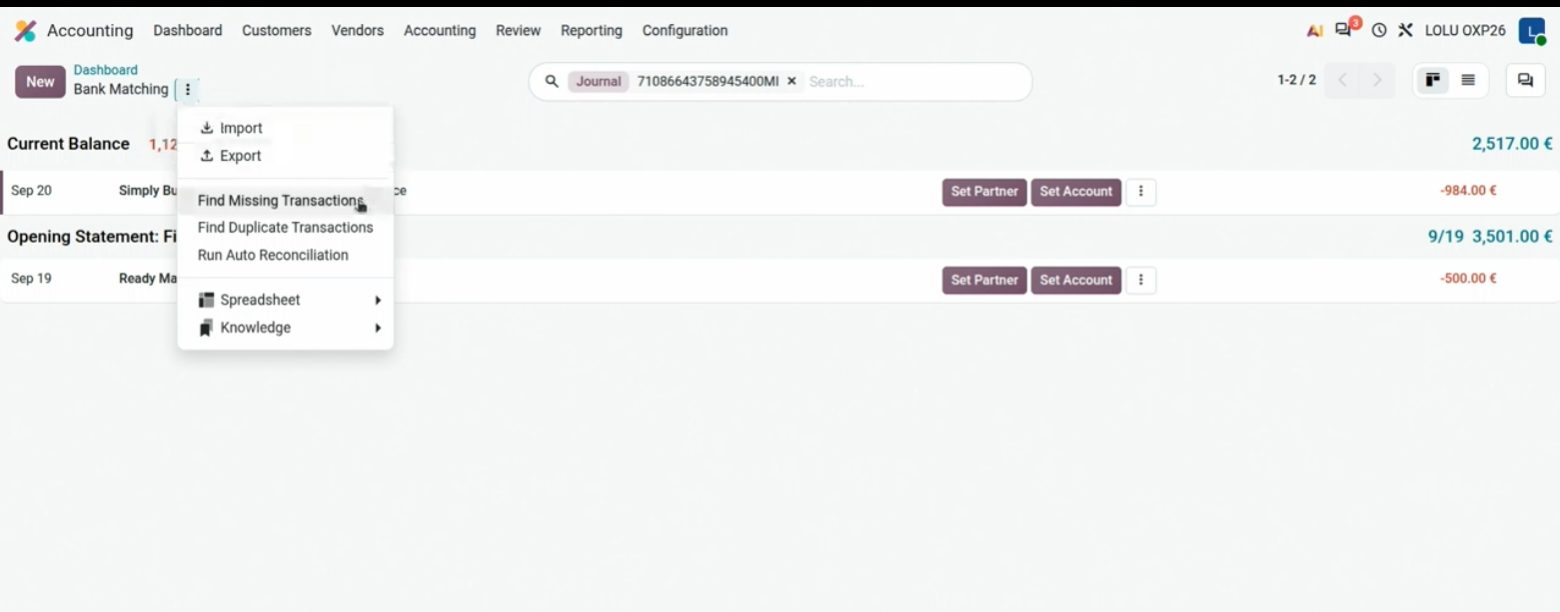
Statement menu: recover missing lines or find duplicates.
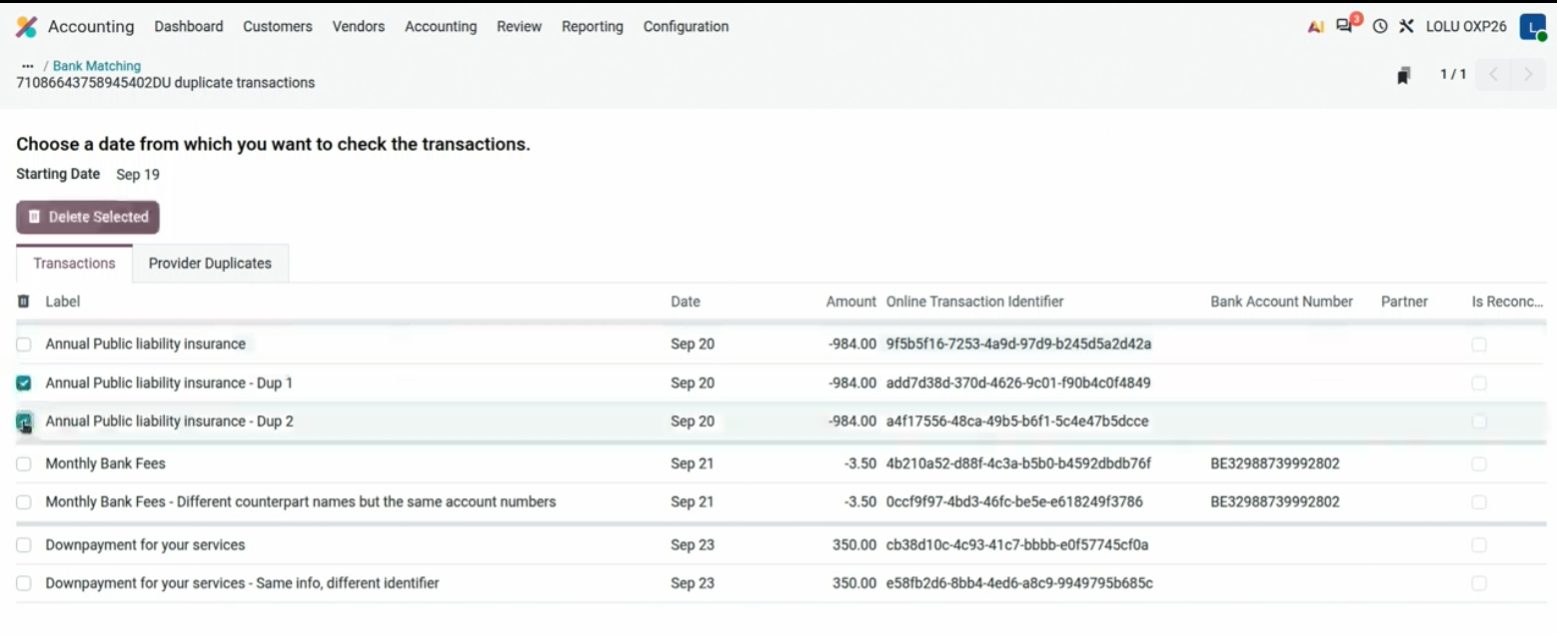
Duplicates selected for deletion. The demo is a Belgian bank.
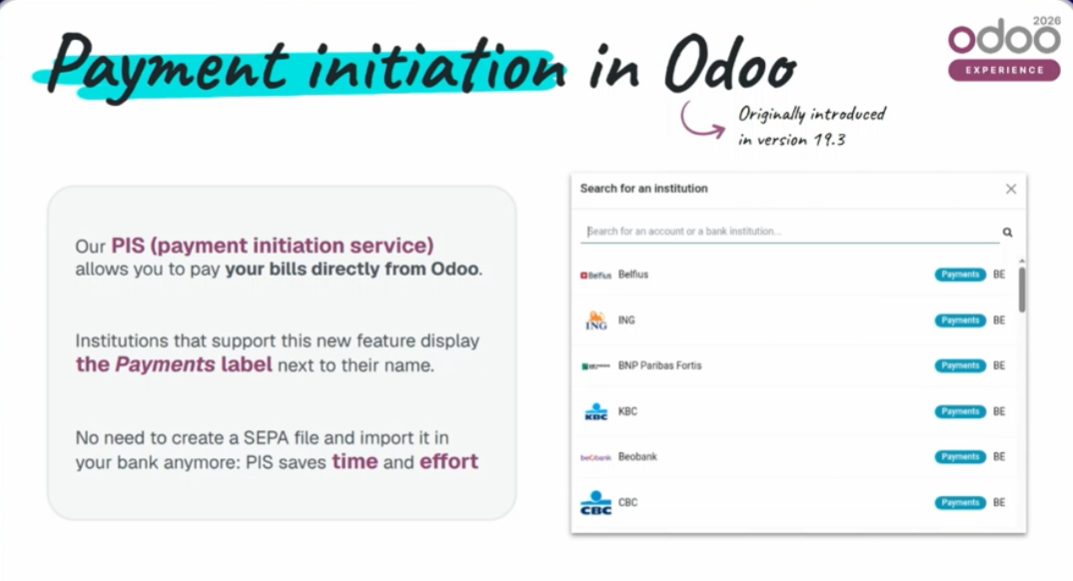
Payments: Send to Bank uploads the SEPA remittance from Odoo. And from the bill itself, Register Payment in one click. The demo is KBC (Belgium). We will look at the Spanish circuit on 1 October; we do not treat it as identical.
Send to Bank on a payment batch. KBC demo; the mechanism is what matters.
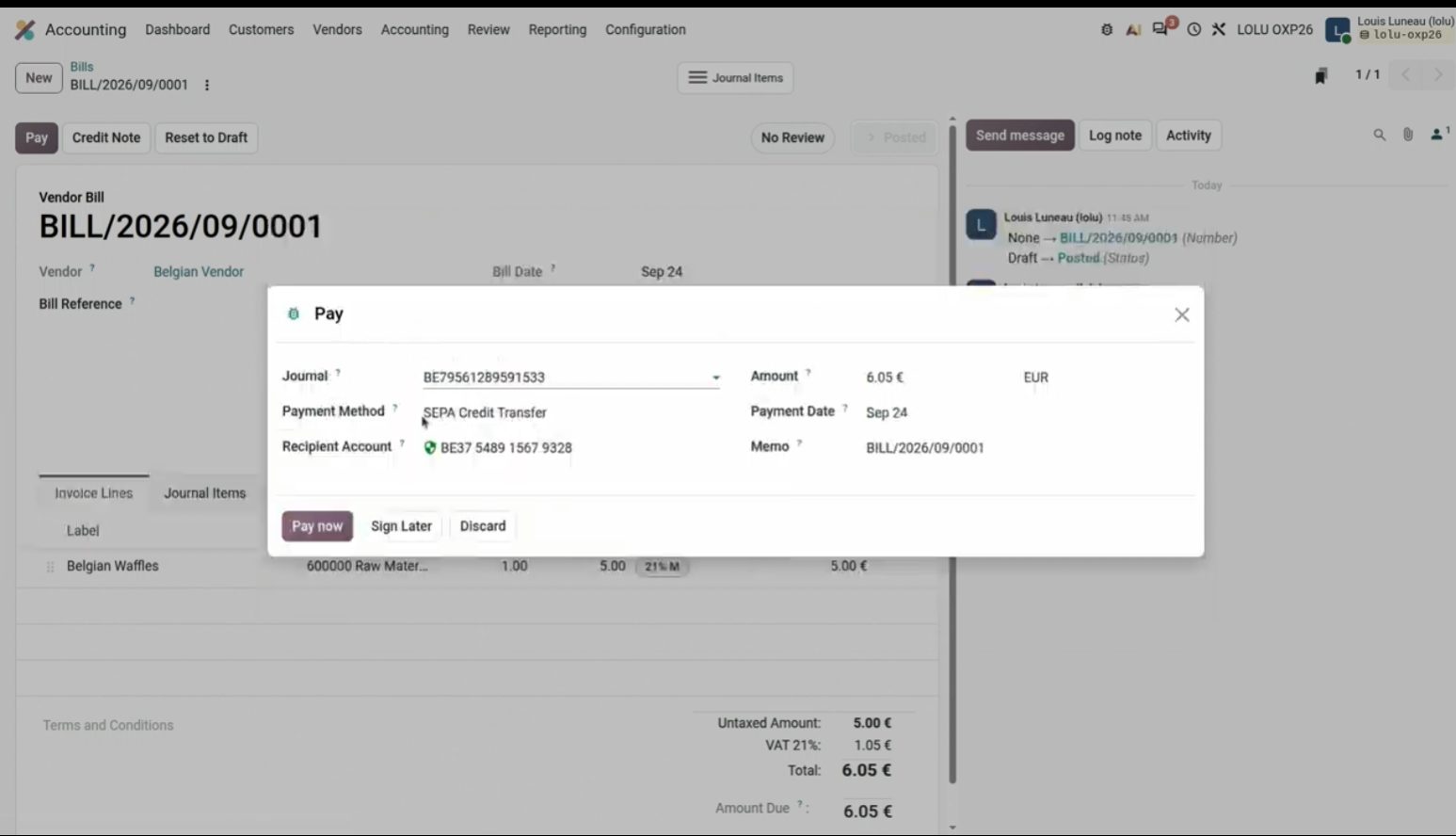
Register Payment from the bill, with account and method already filled.
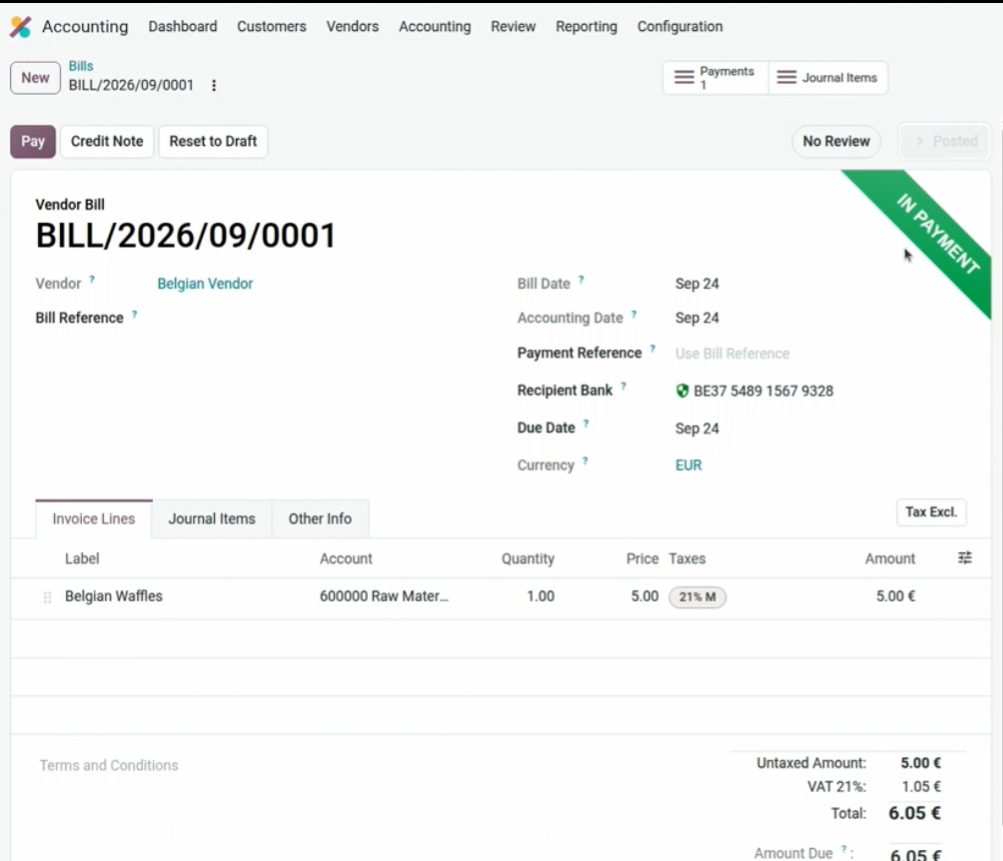
Pay now right on the invoice itself. One click; the demo bank is Belgian.
Documents, VAT, assets and sequences
From Documents you can do a lot of things: create the invoice and edit the actions (send, create a vendor bill, move the PDF to another place in Odoo). Useful for centralizing documentation in the ERP.
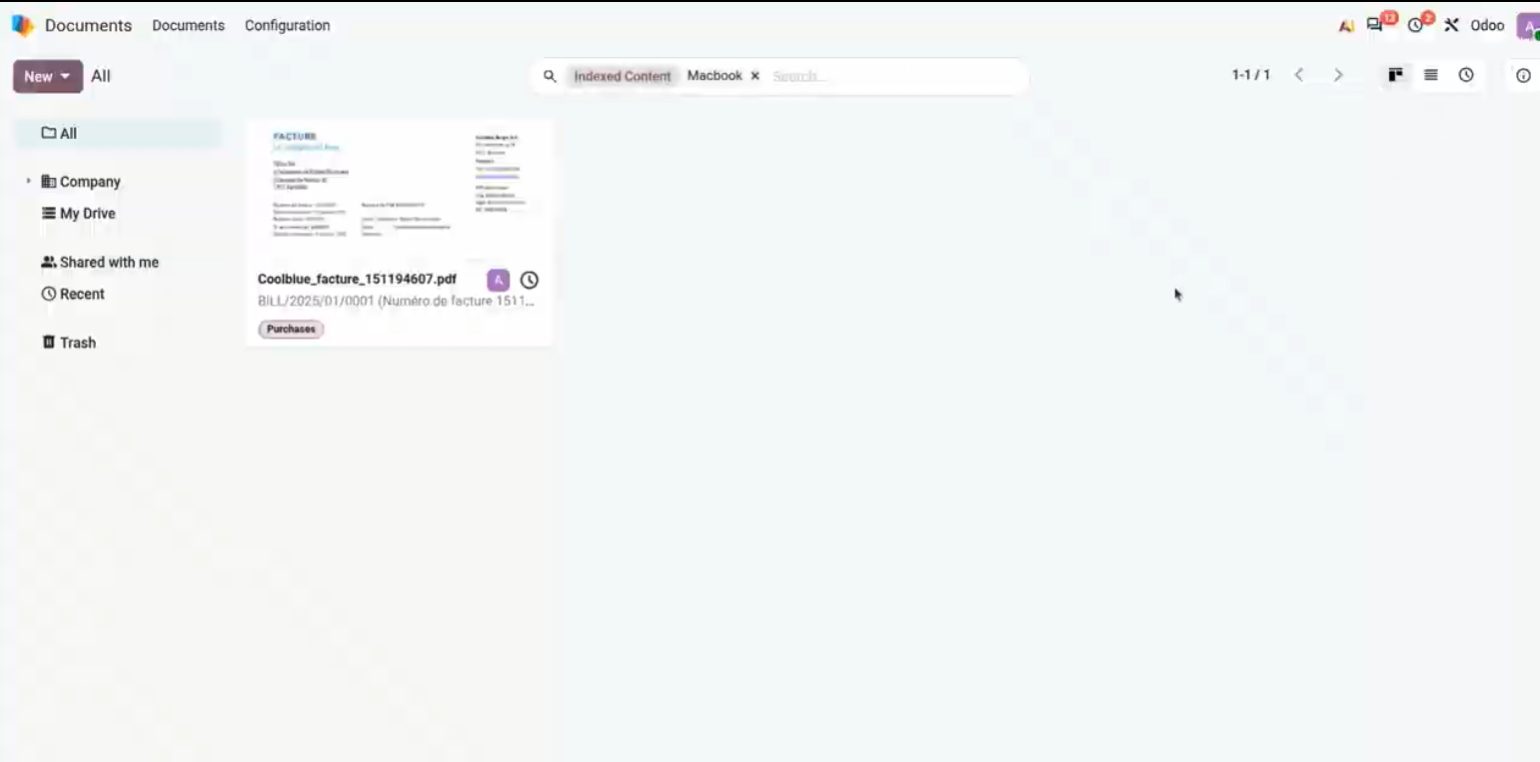
Documents: the invoice PDF is already in Odoo, ready for an action.
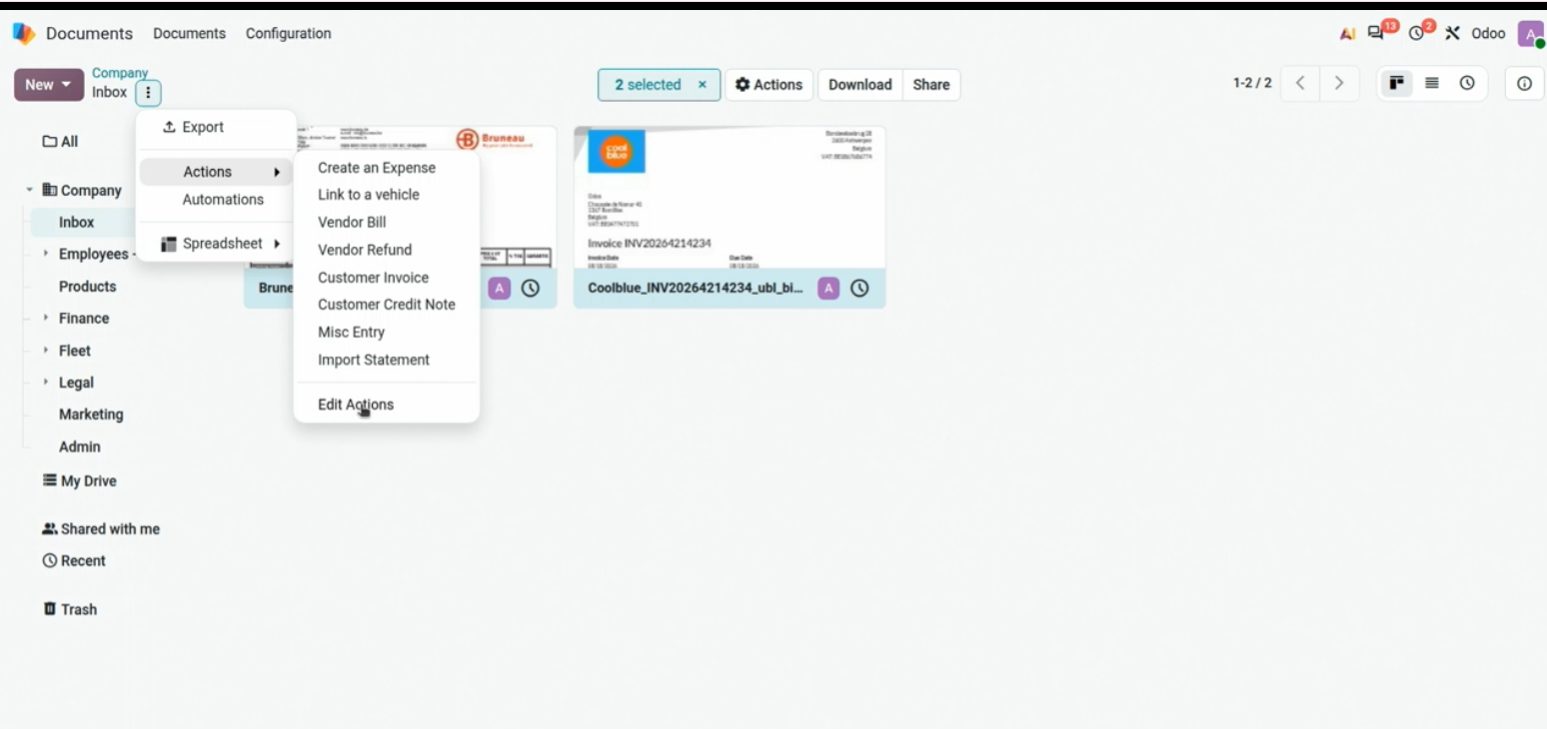
Actions on a PDF: Send, Create Vendor Bill, and the rest of the circuit.
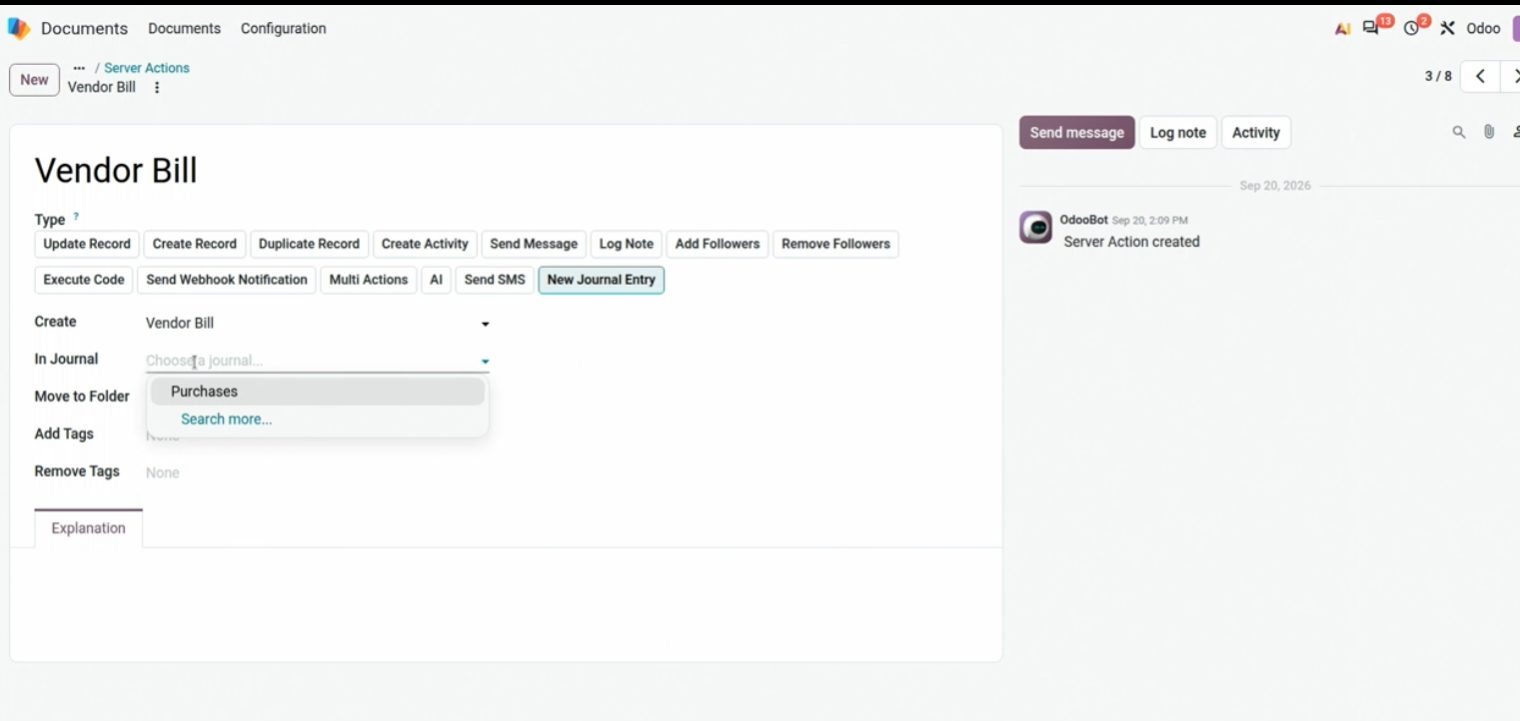
Edit Actions: you choose what happens to that PDF and which folder or process it goes to.
In the purchase invoice, lines can be grouped by VAT type.
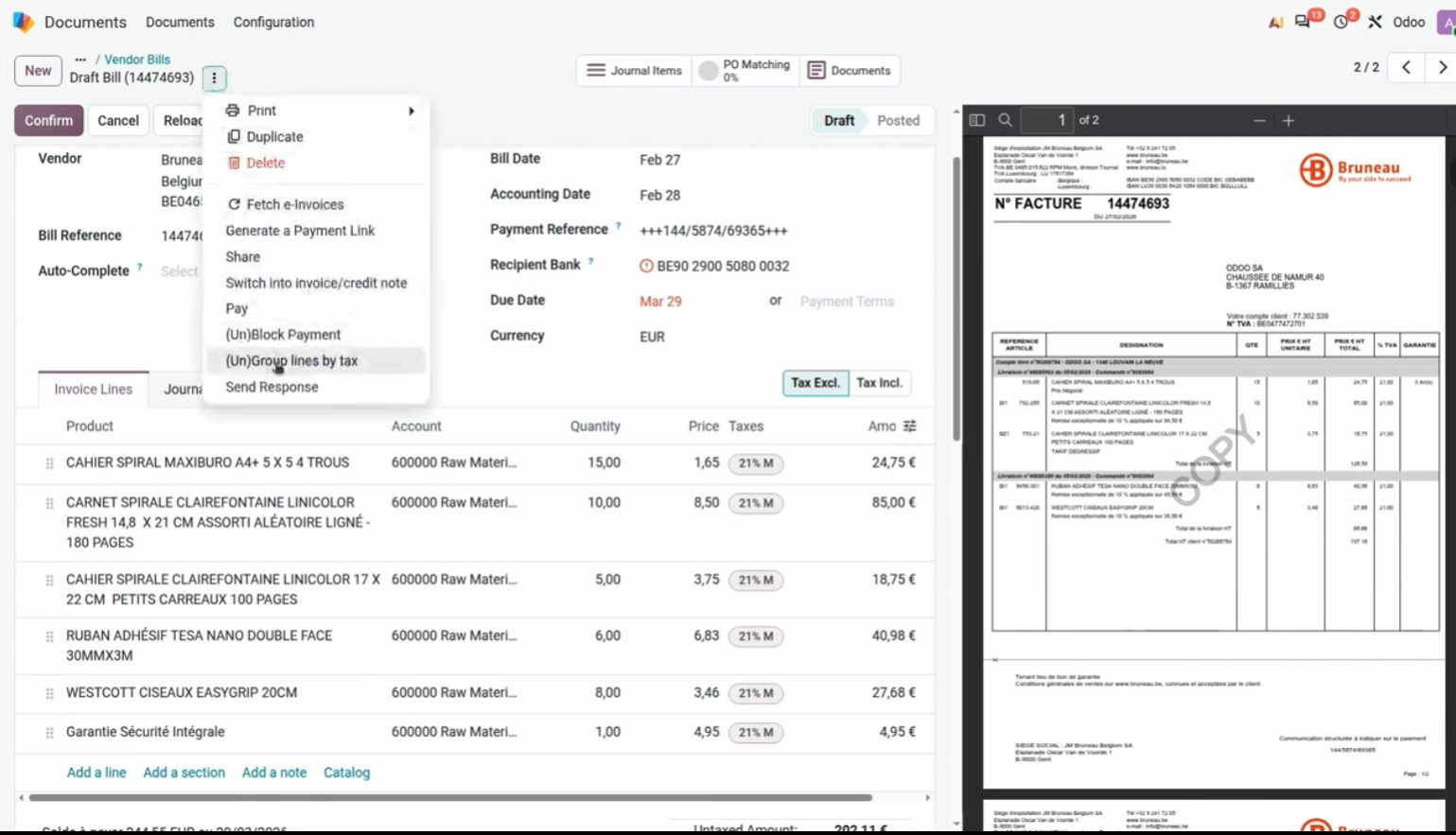
Group by taxes on the vendor bill. Hidden gems, OX 2026.
From the invoice you open Journal Items, view the journal entry and split it (Split) into several lines. It's useful for creating one asset per unit, without redoing the invoice by hand. In the demo: one line of 10 units of furniture at 1.049 € (figures from the session).
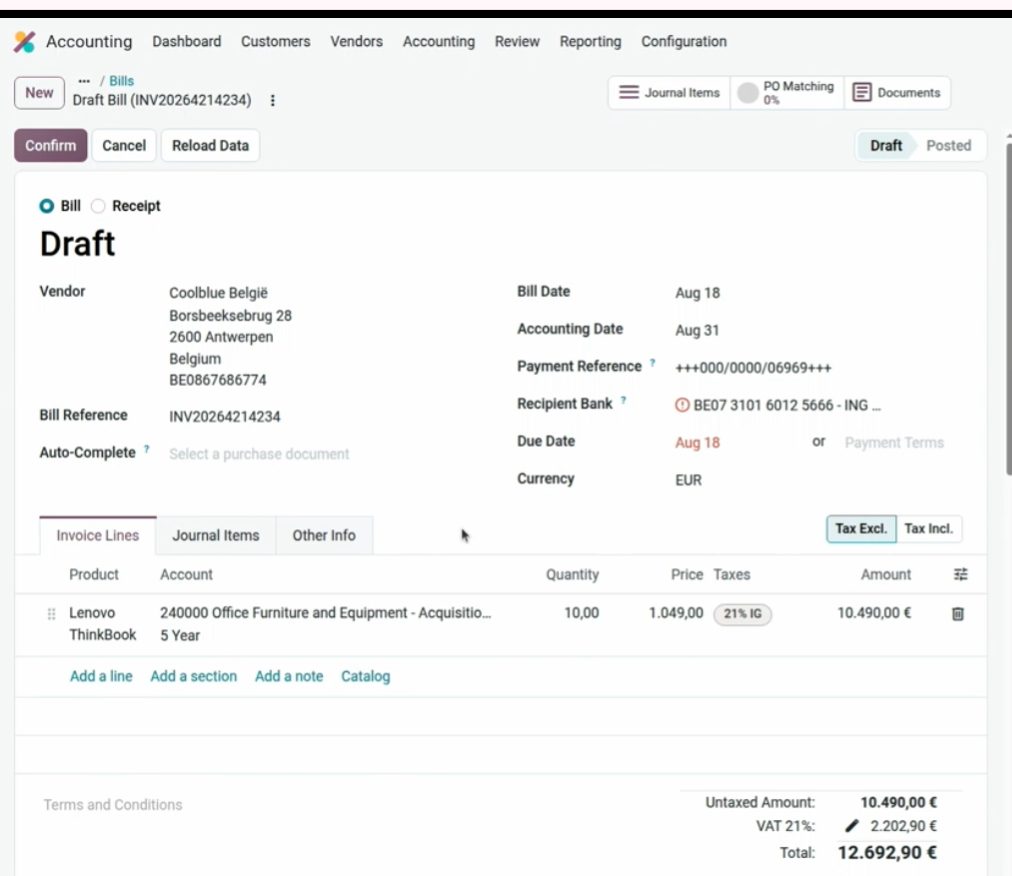
Demo invoice: 10 × Lenovo / furniture. This is where the entry starts from.
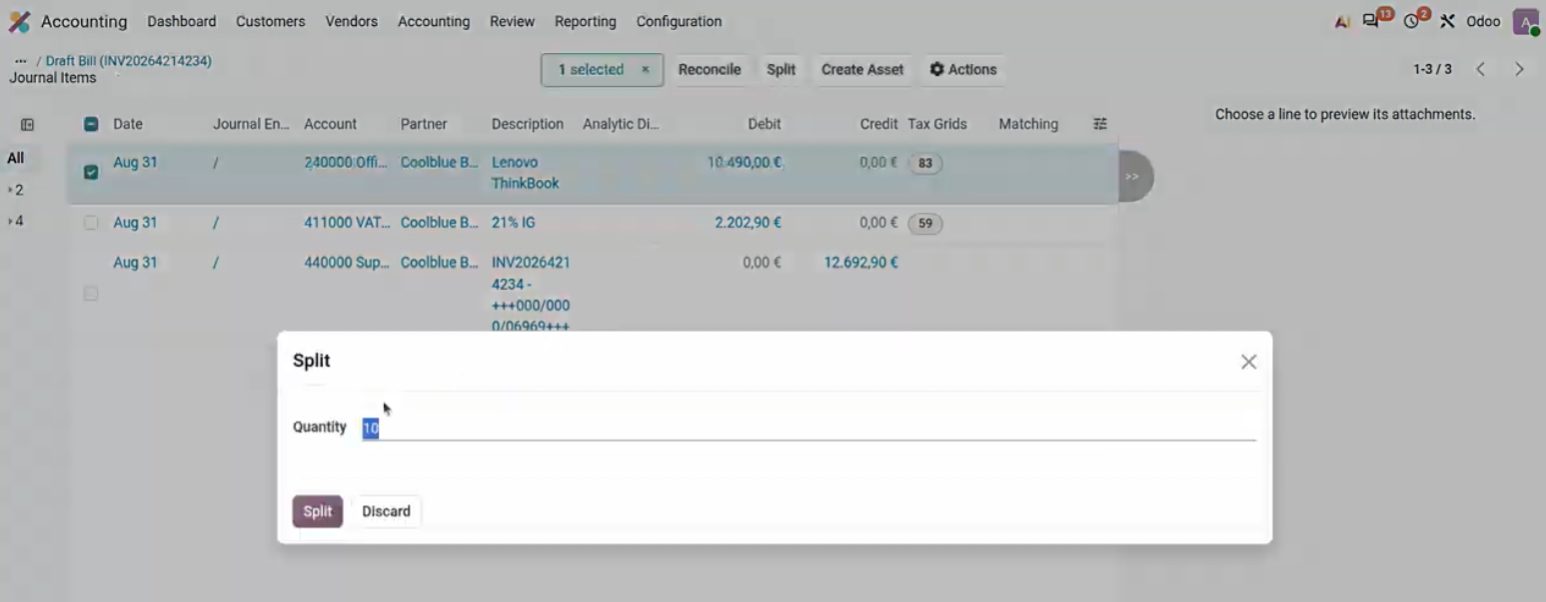
Split: you enter the quantity and Odoo splits the line.

Split into 10: from one line of €500 to ten lines of €50, ready for Create Asset. Demo figures.
The purchase dashboard warns about irregular sequences. On vendor bills a gap is not illegal, but to resequence you need developer mode and Resequence (it already existed in earlier versions).
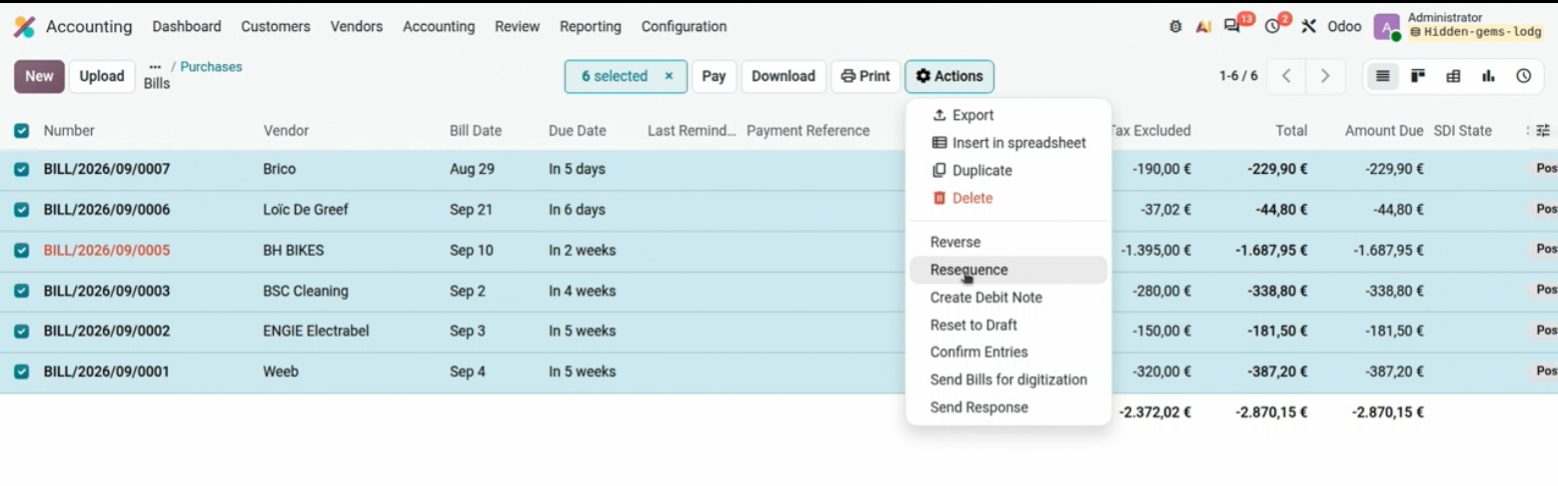
Irregular sequences on Purchases. The gap is a vendor gap; it is not a 347.
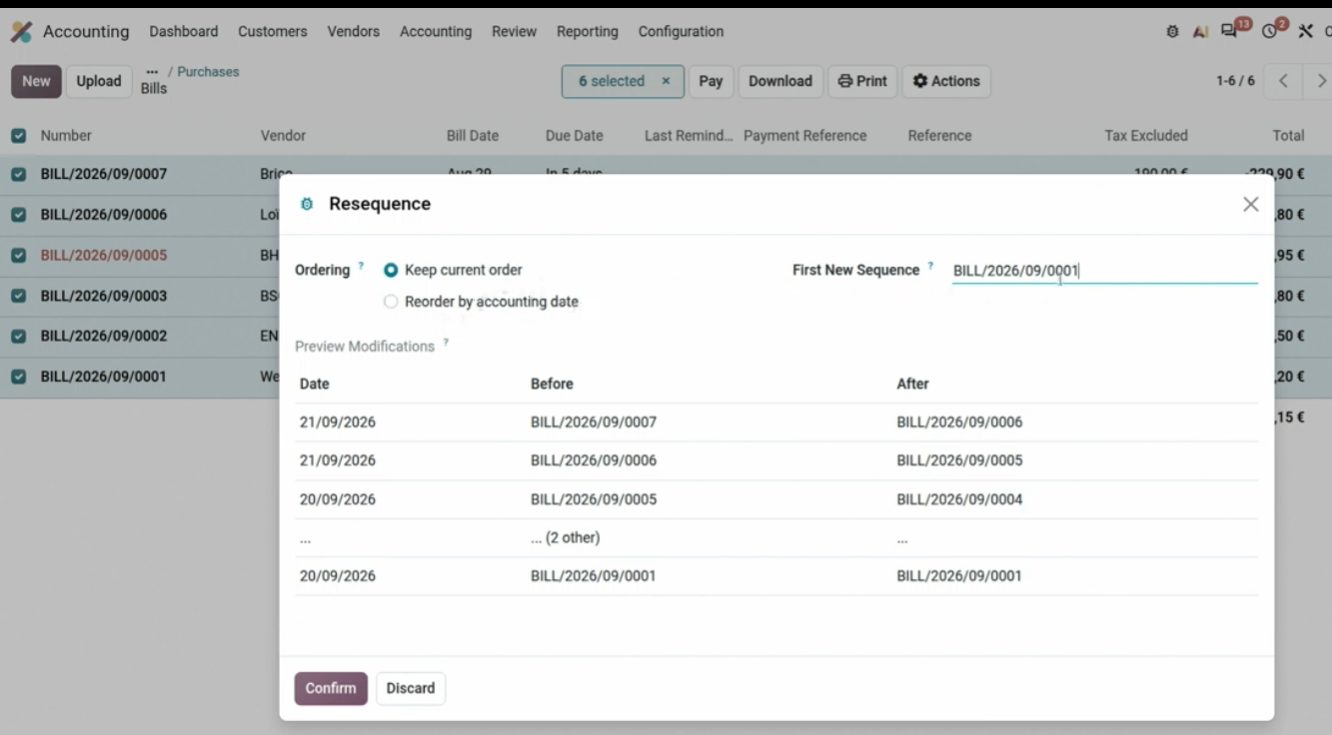
Resequence: first number and start date. Developer mode.
Bulk change of period or date: select entries and Actions → Change Period. Very useful for moving wrongly posted invoices in quarters or periods that are already closed.
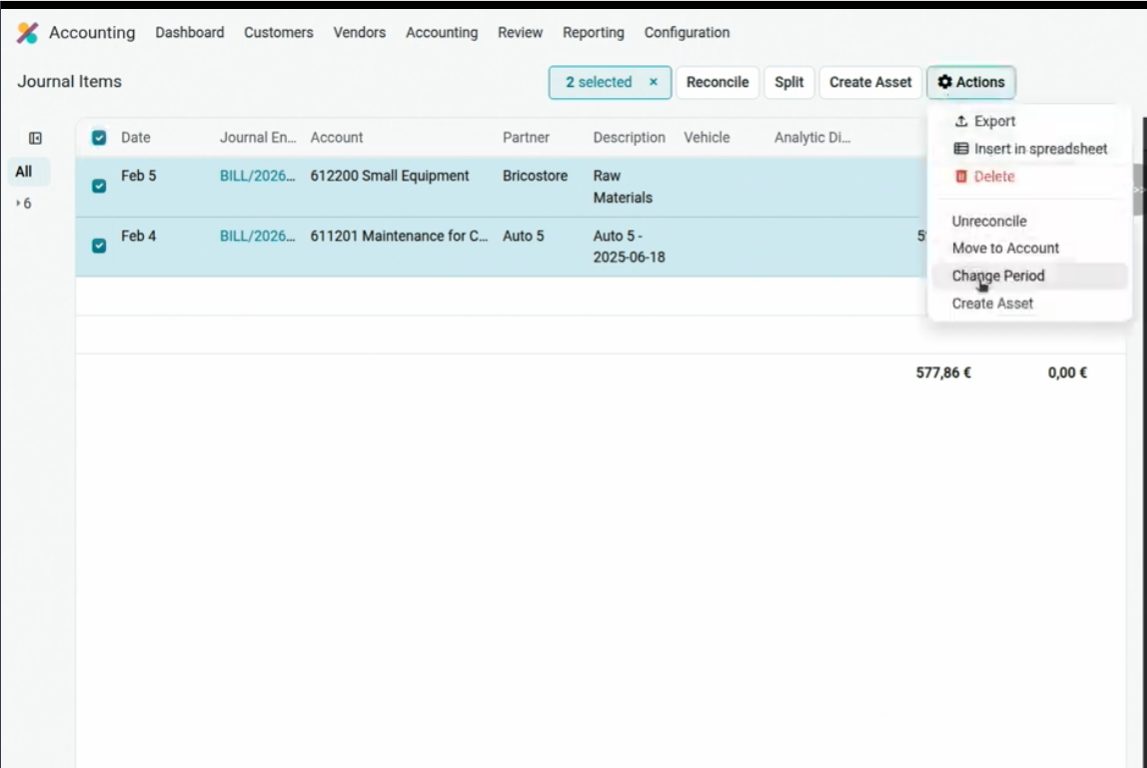
Change Period on two journal items. Hidden gems, OX 2026.
Reconcile every bank on one screen
Accounting → Reconcile groups together the pending statements. Auto-reconcile exists; it has to be configured properly or it will match things it shouldn't. It's useful and has gone through several versions. Personally I prefer going bank by bank and staying up to date, so you don't build up a backlog or run mass reconciliations that slip through with errors.
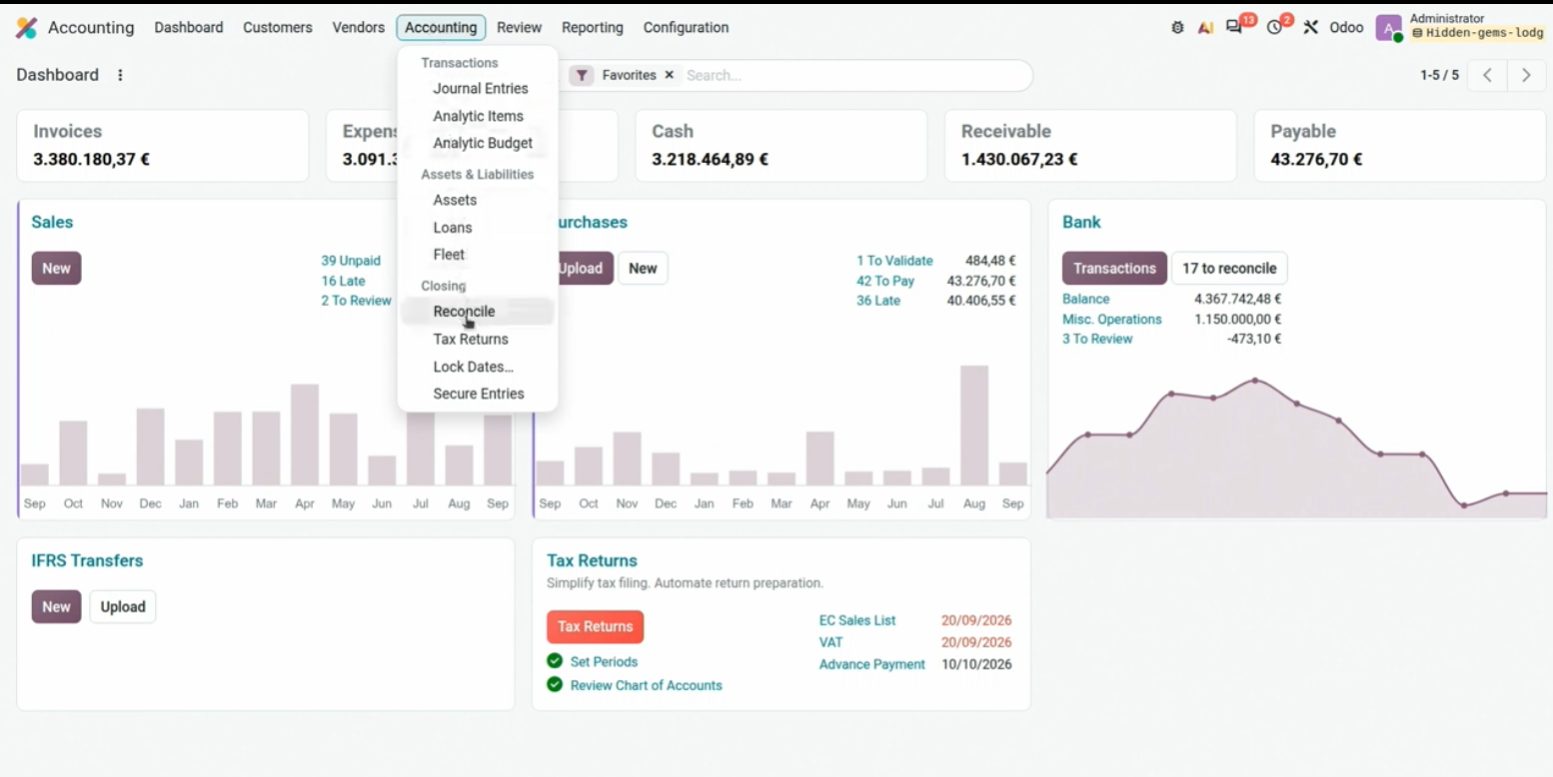
Reconcile: several bank journals in the same view, with Match.
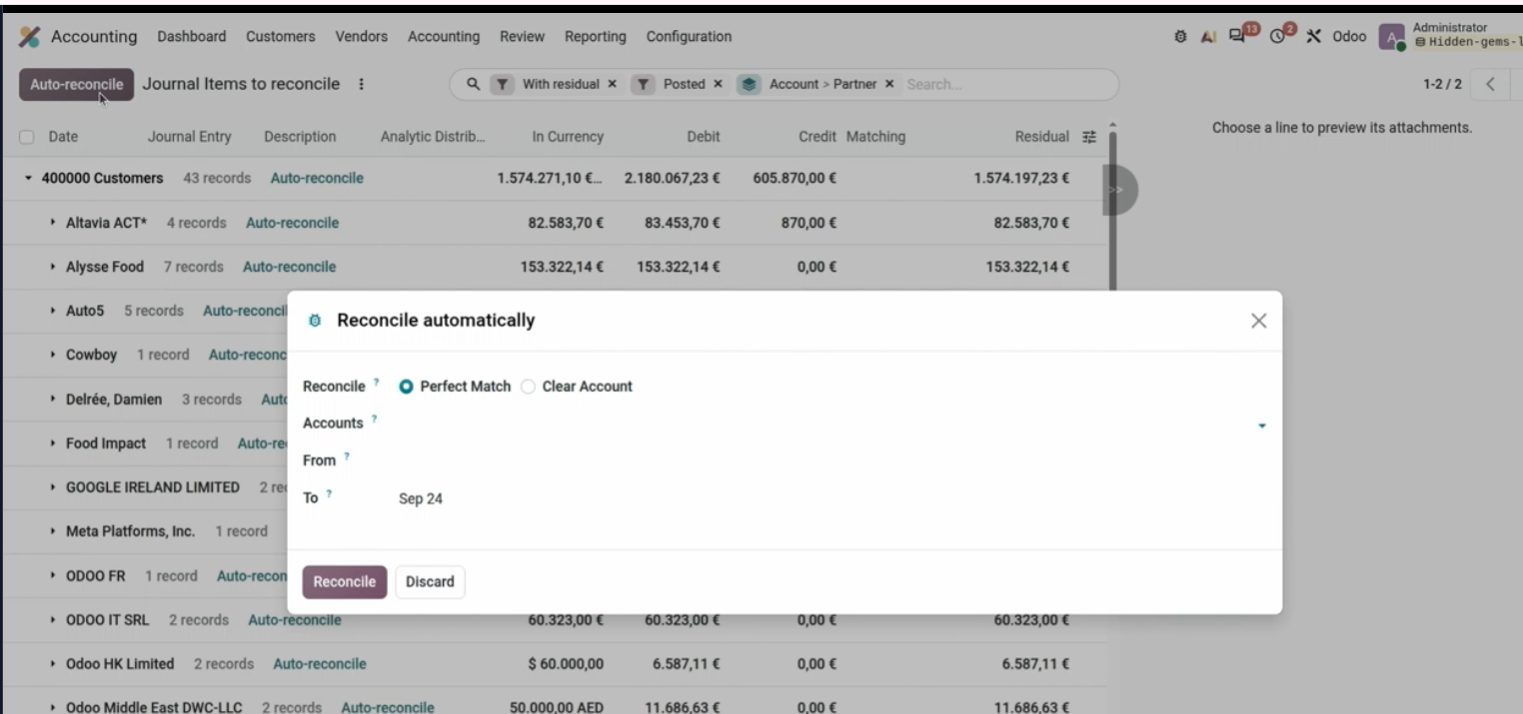
Auto-reconcile. Use it with clear rules; not blindly.
Taxes of another country, compared P&L and mismatches
When you create a tax from another country, Odoo offers to install that country's entire package. This way we avoid creating taxes by hand and mapping errors in reports.
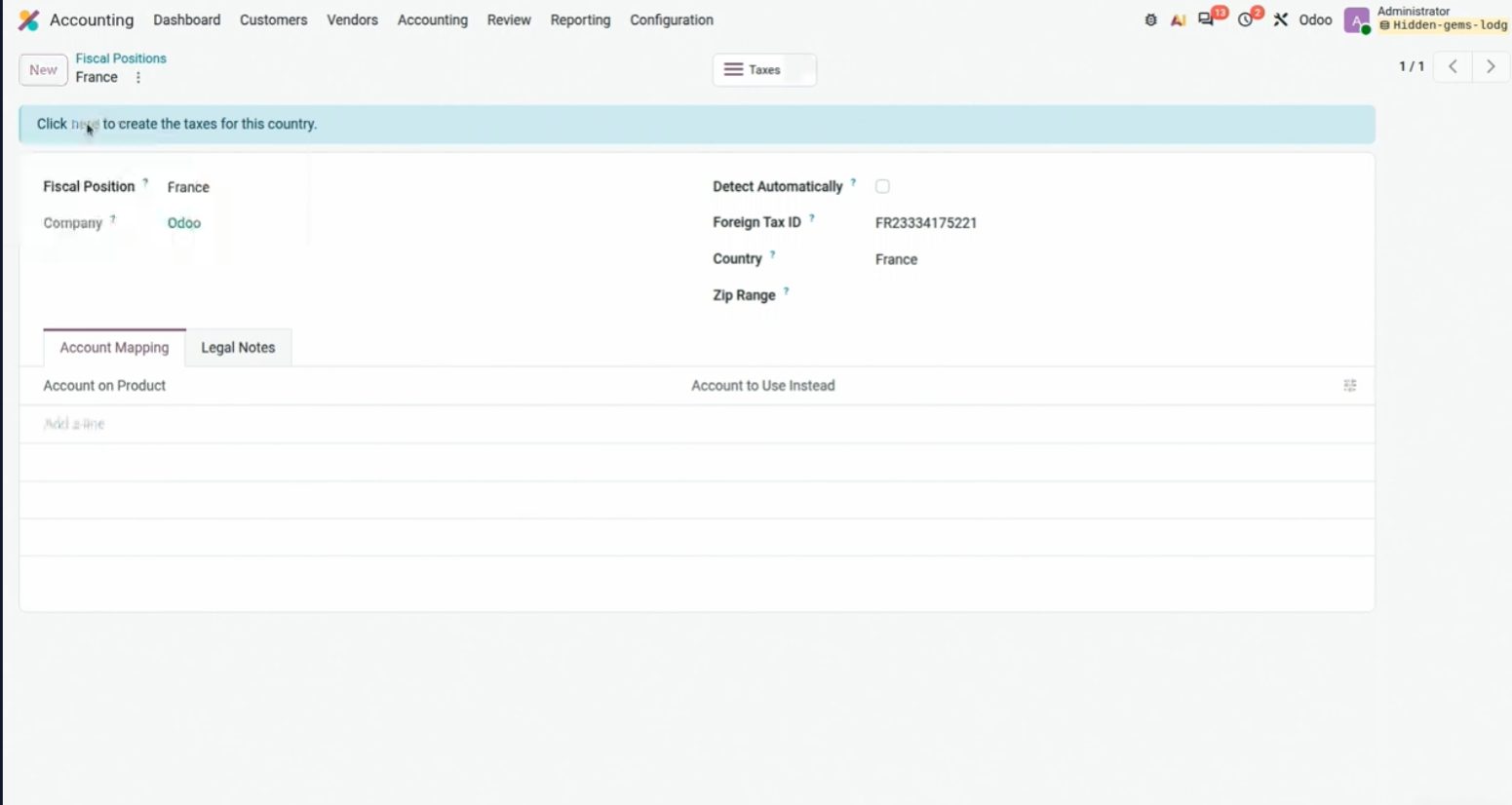
Create Luxembourg Taxes. The pattern applies to any localization country.
The P&L compares by amount and by percentage (Horizontal Analysis). The gear icon on the right opens the report configuration without leaving the screen. From there you can also filter by analytics.
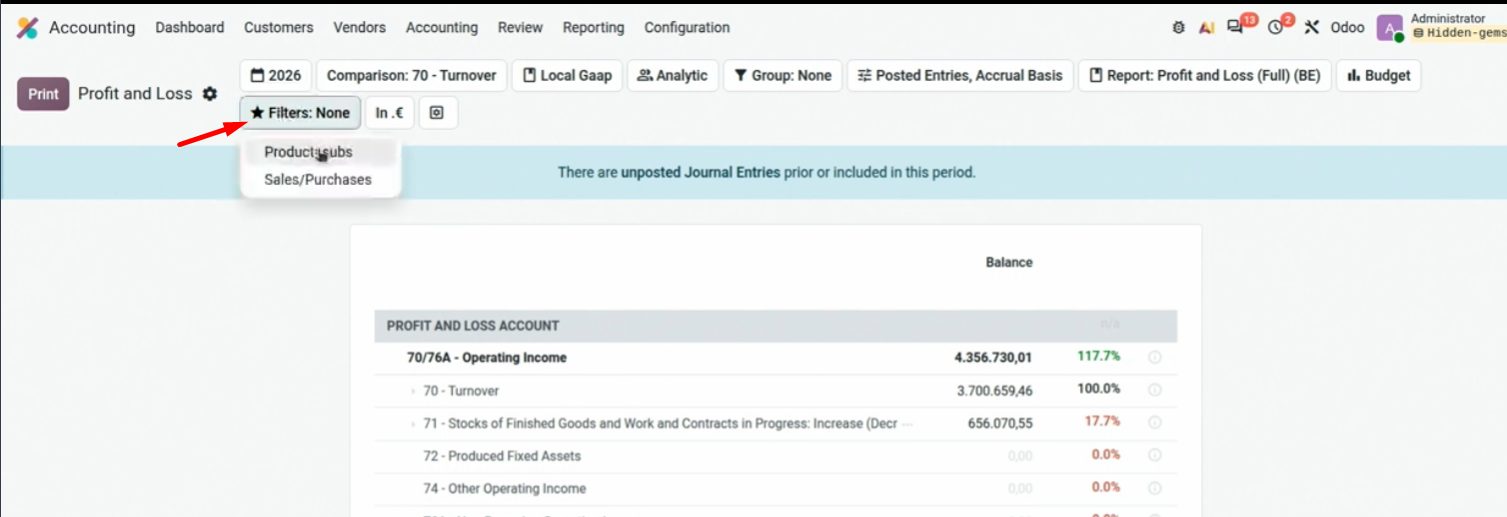
Comparison + % of a column. Demo figures.
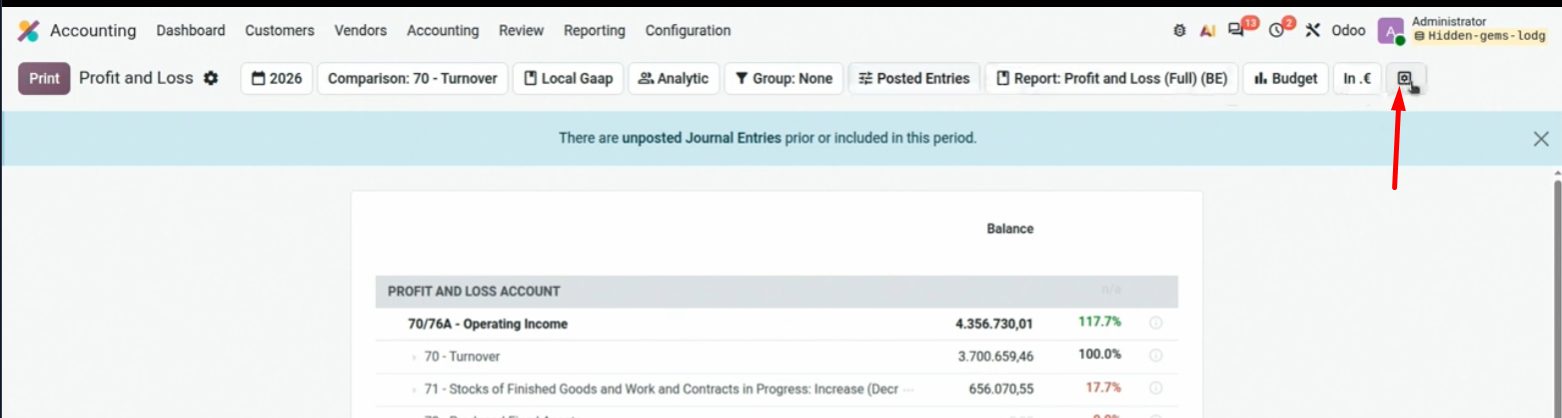
The gear icon (top right) opens the report form.
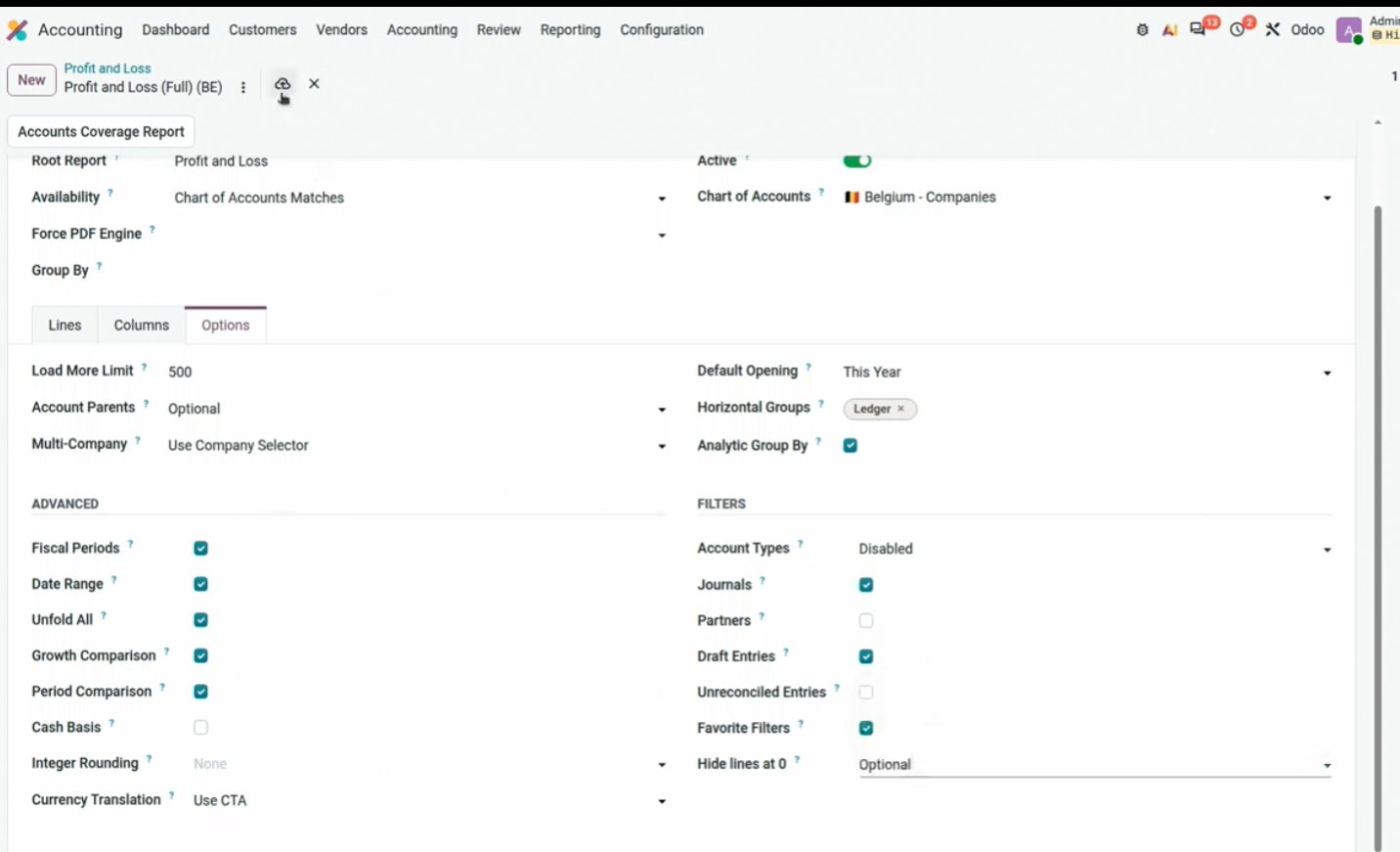
Report options: columns, analytics, account coverage, comparisons.
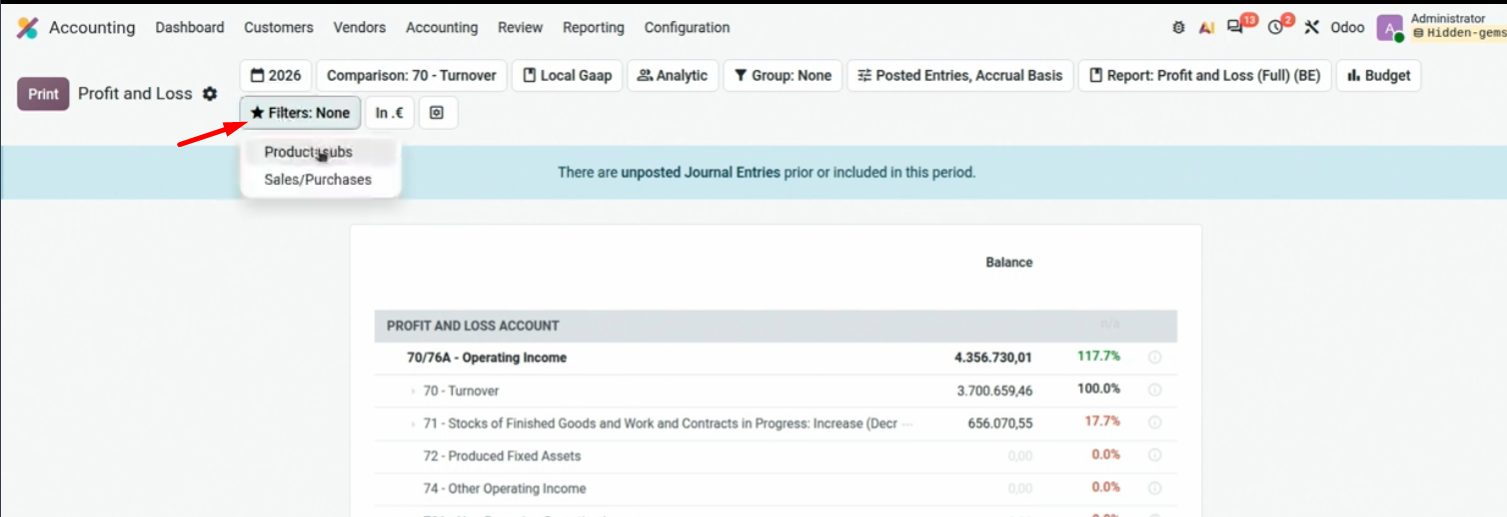
Analytics filter (Sales, Purchases…) without leaving the P&L.
If the Balance Sheet does not balance (assets ≠ liabilities), there is almost always a chart account not mapped in the report. Accounts Coverage Report marks them in red. Contaldia advice: fix the account number so it fits the PGC; do not twist the report.
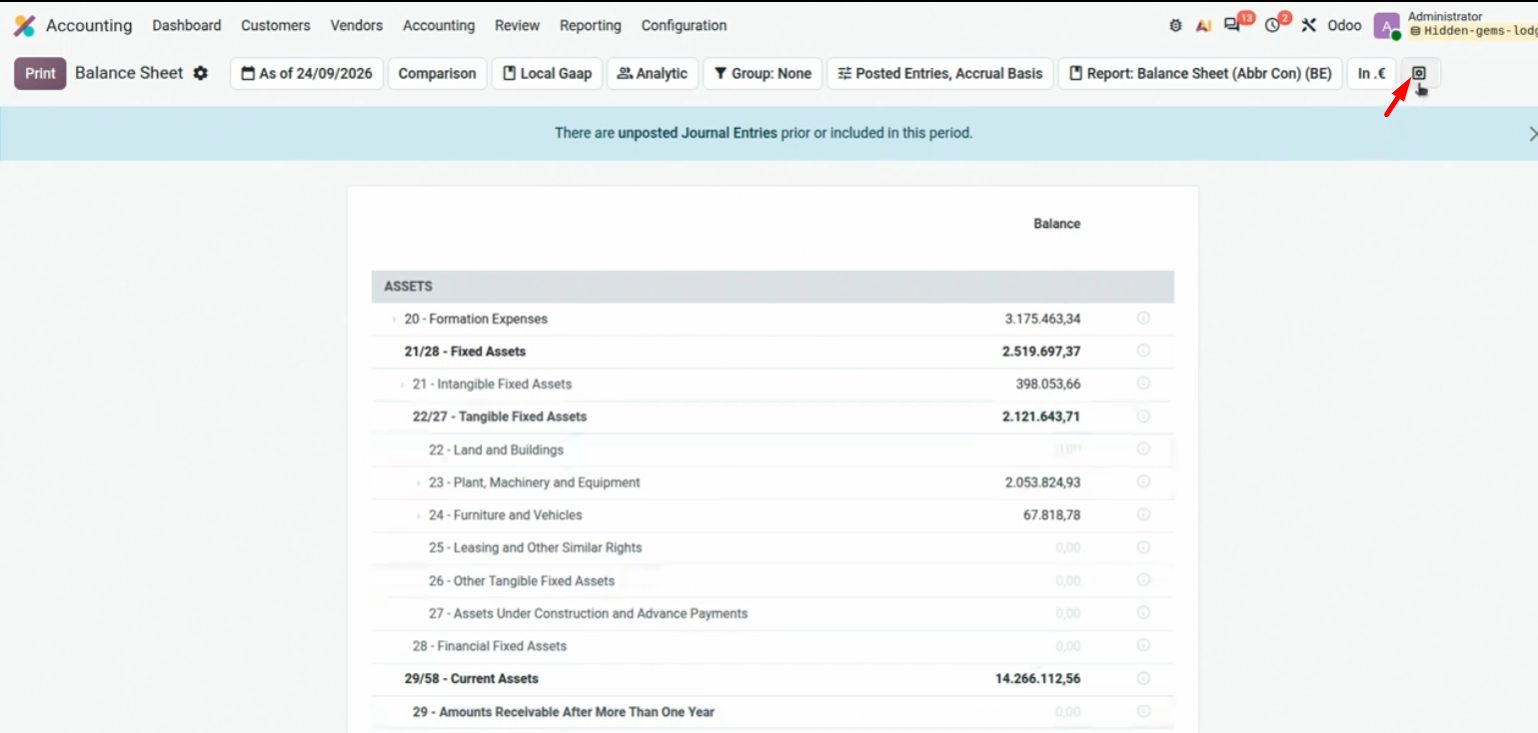
Unbalanced: the report itself warns and links to coverage.
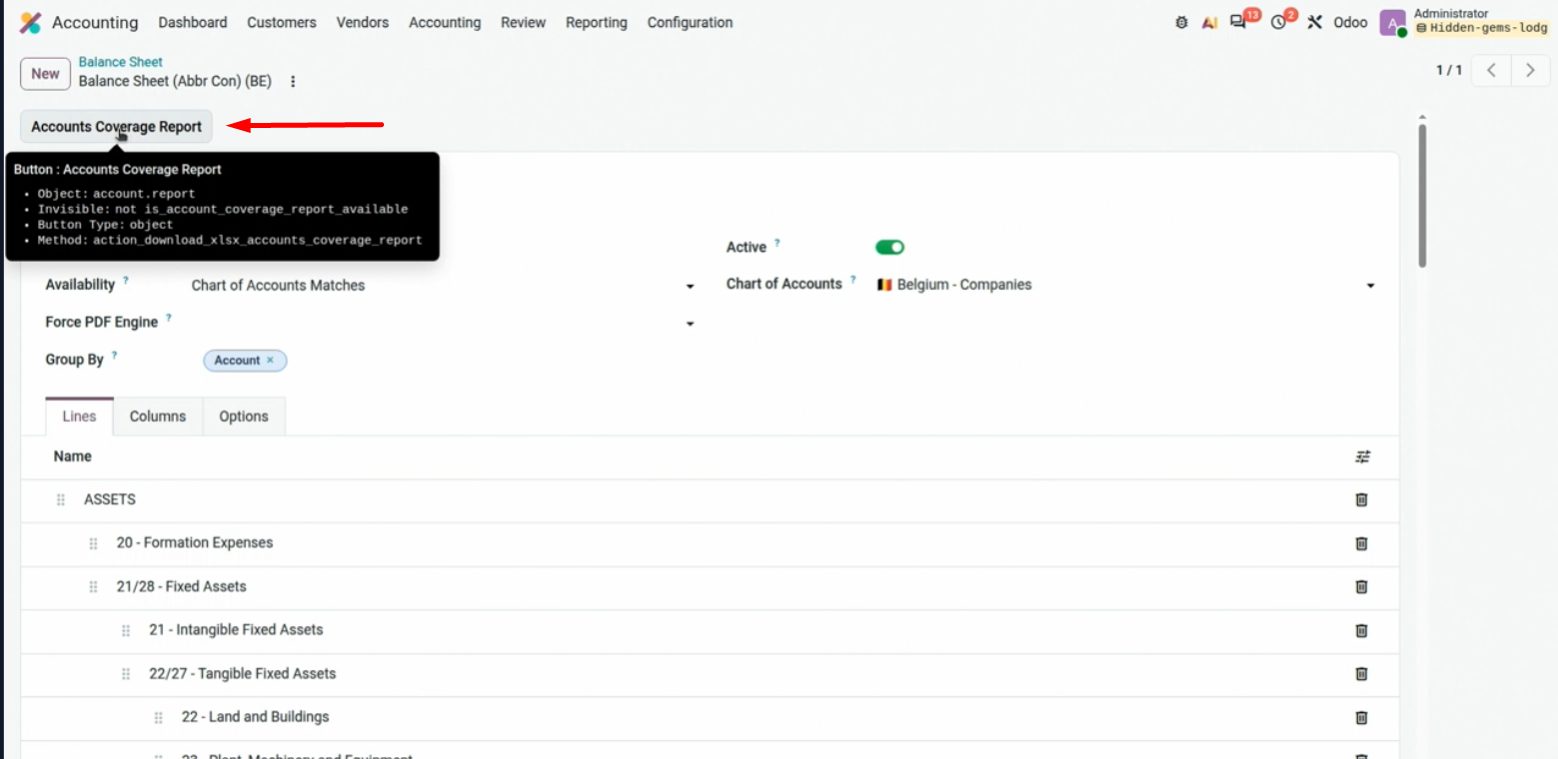
Accounts in red: they are on the chart and not on the Balance Sheet. Map them or renumber them.
Composite reports: Accounting → Configuration → Accounting Reports → New, check Composite Report, add the ones you want (Add Sections) and put them in the menu. Several reports with one click.
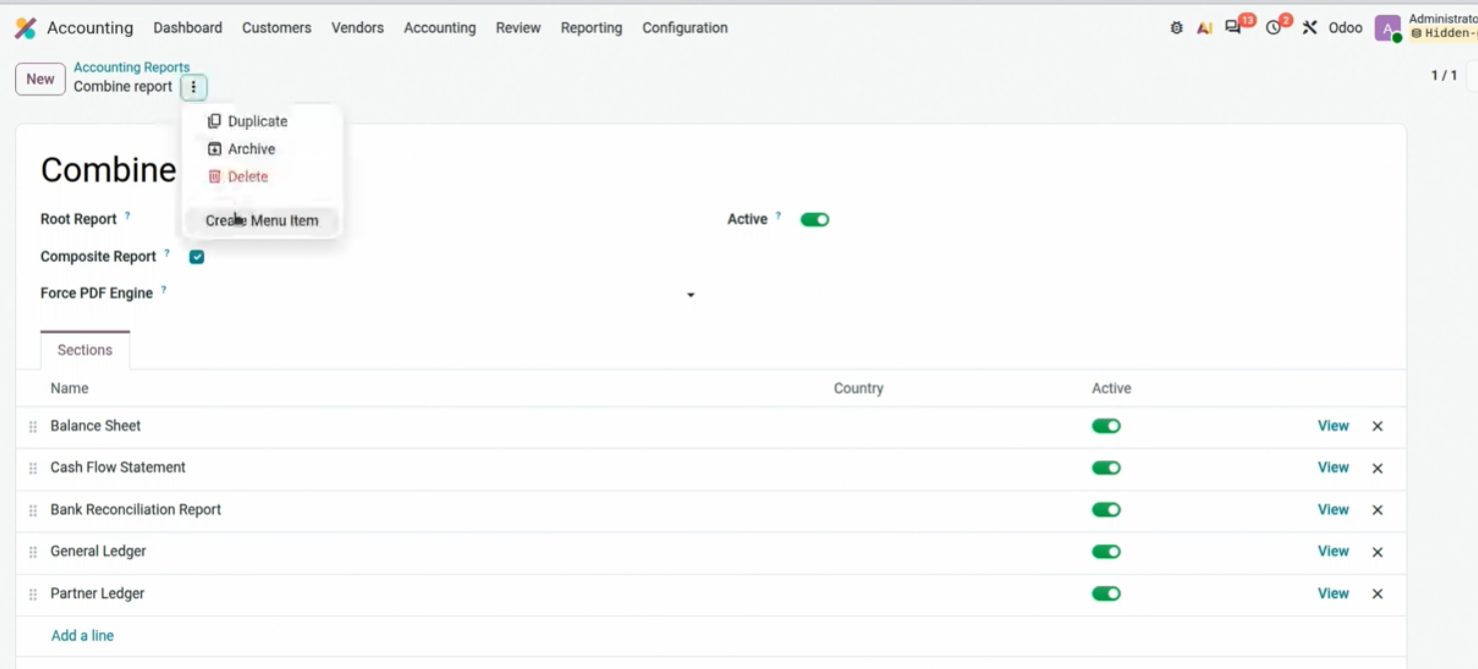
Composite Report: several reports in one, then Add to menu.
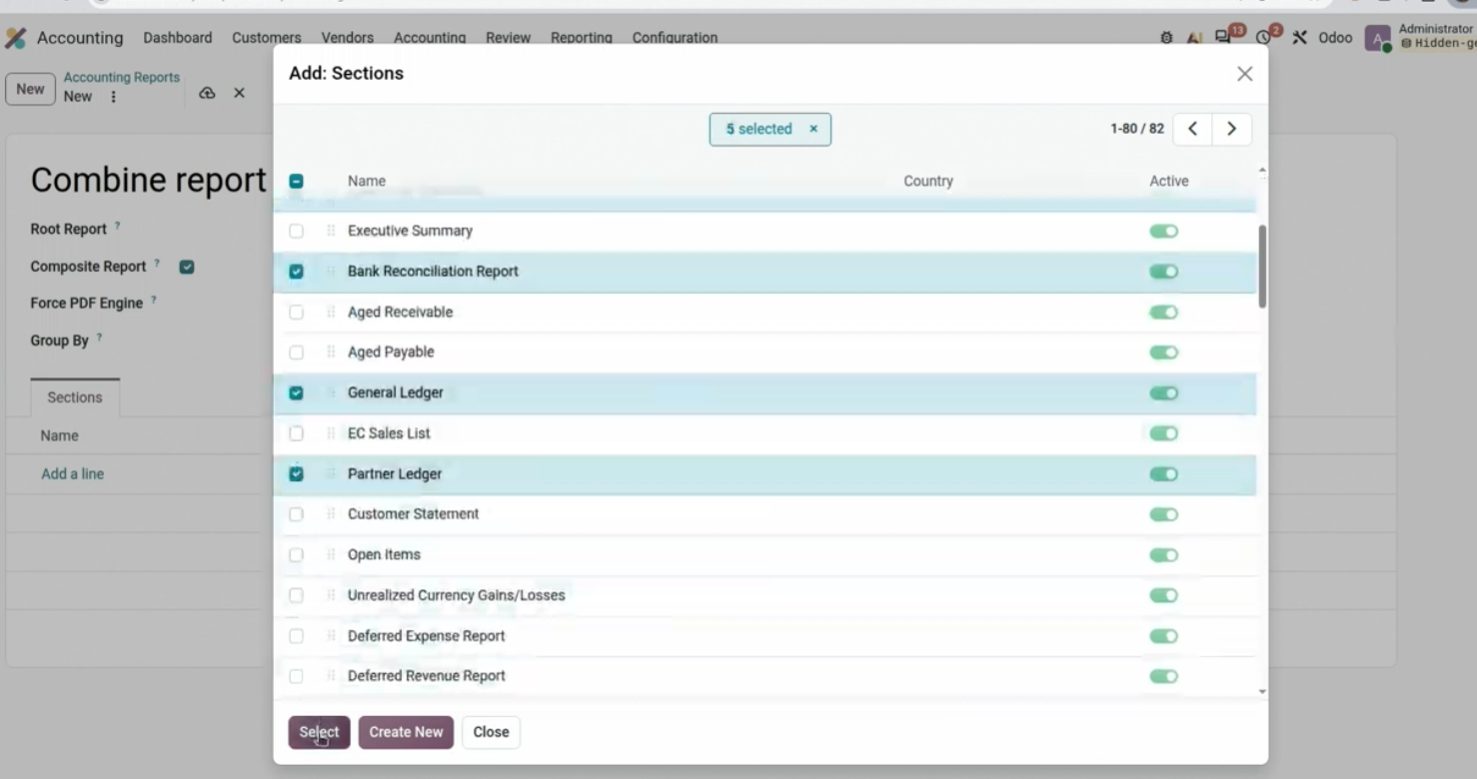
Add Sections: Bank Reconciliation, Aged Receivable, General Ledger…
Spreadsheets, % search and mass edit
From a report you can insert a pivot table into an Odoo spreadsheet. The dashboard remains a sheet inside the ERP, not an orphaned Excel file. It already existed; it's still very useful.
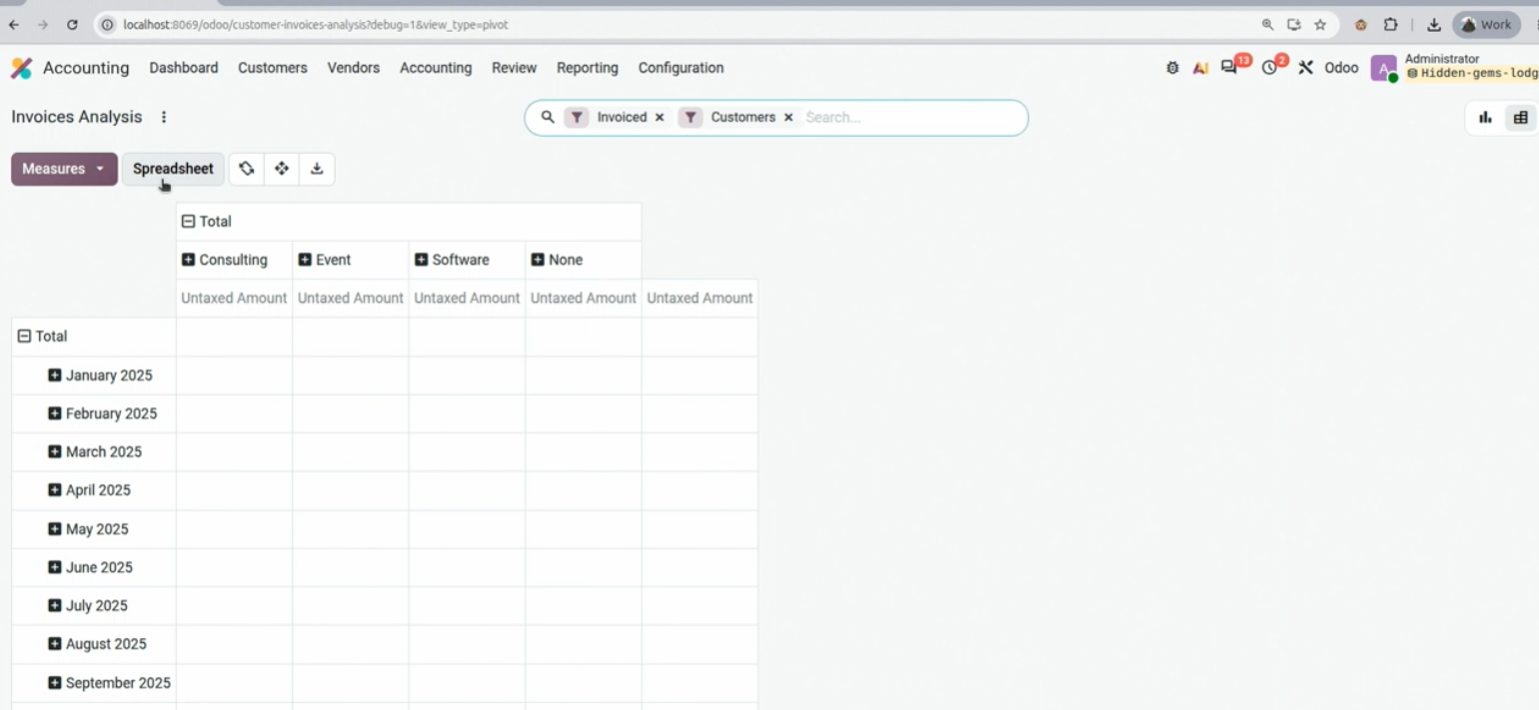
Insert in spreadsheet → Pivot. It also works for a list of bills.
And also from any list of invoices, accounts or whatever you like: Actions → Insert in spreadsheet.
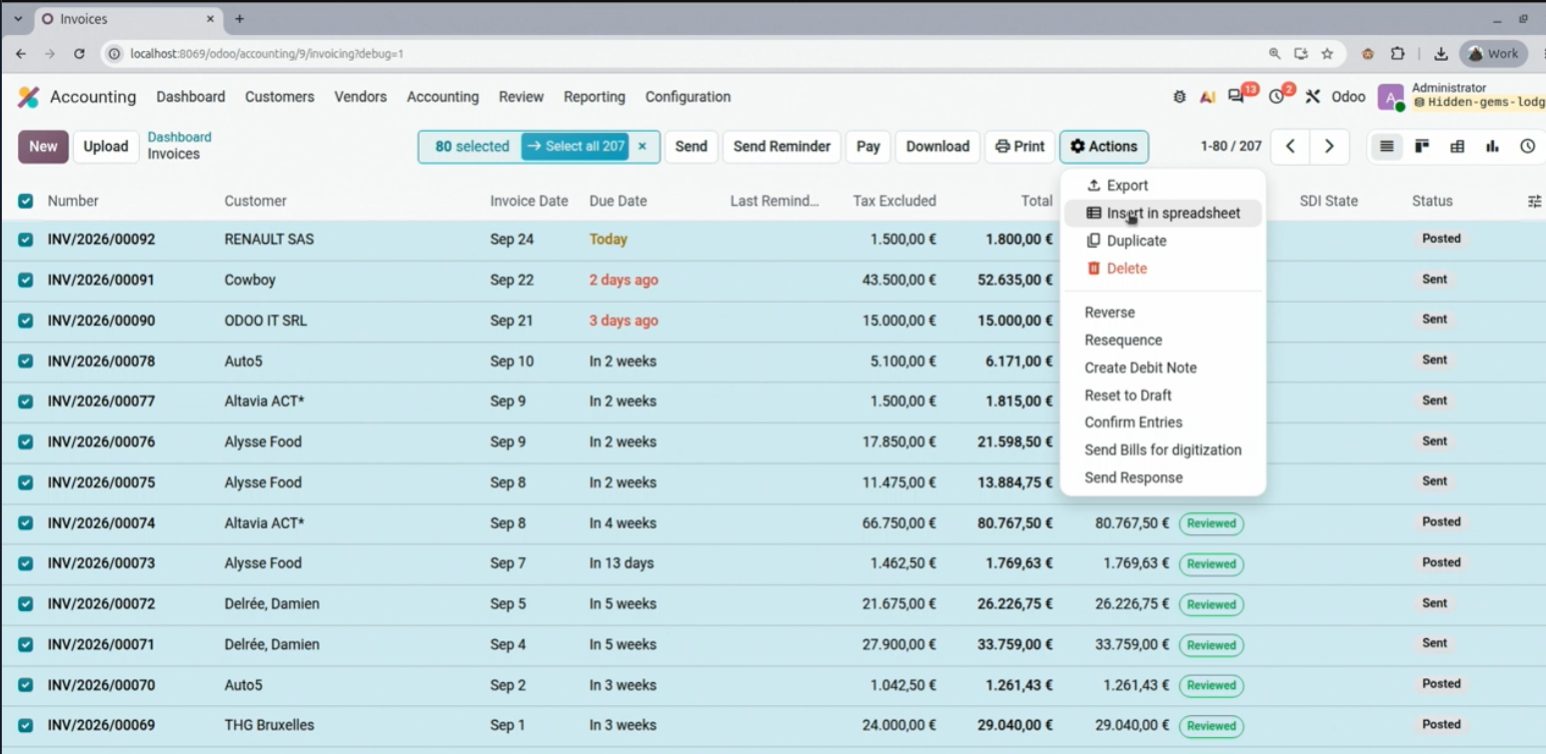
Invoice list: Insert in spreadsheet. The Excel lives inside Odoo.
Two tricks that didn't come up at OX 2026 and that I use every day. The % in the search bar skips whatever is between two words: useful for contacts or products with long names.
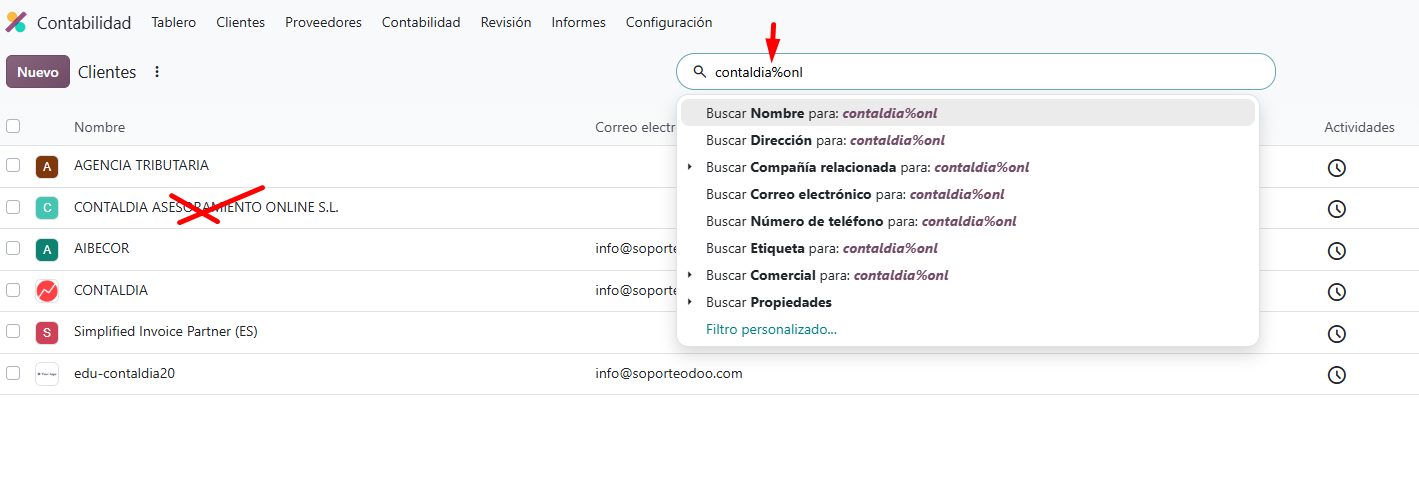
contaldia%online finds Contaldia Online Consulting. The % omits the word in the middle.
And the bulk change: if you select several entries (or invoices) and change the account in the list, it applies to all of them. Accounts, analytics and more, without opening them one by one. A Contaldia accounting trick.
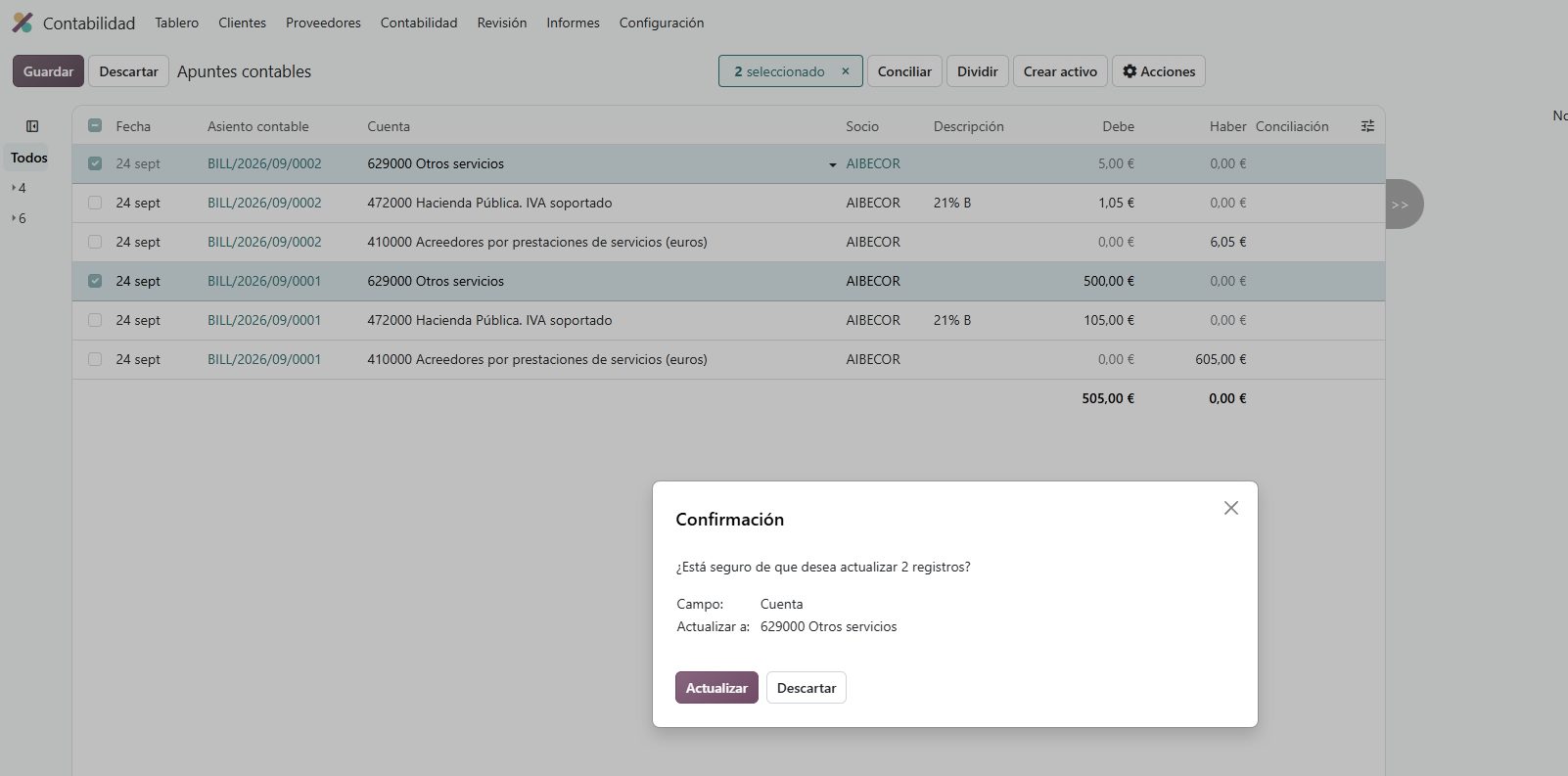
Several journal items selected: change the account in the list and it applies to all.
Reports: more columns, faster
The Balance Sheet in 20 has more columns than fitted in 19: before/after, debit and credit, percentage of a column, and a Load more to add others. Less parallel Excel for the same cut.
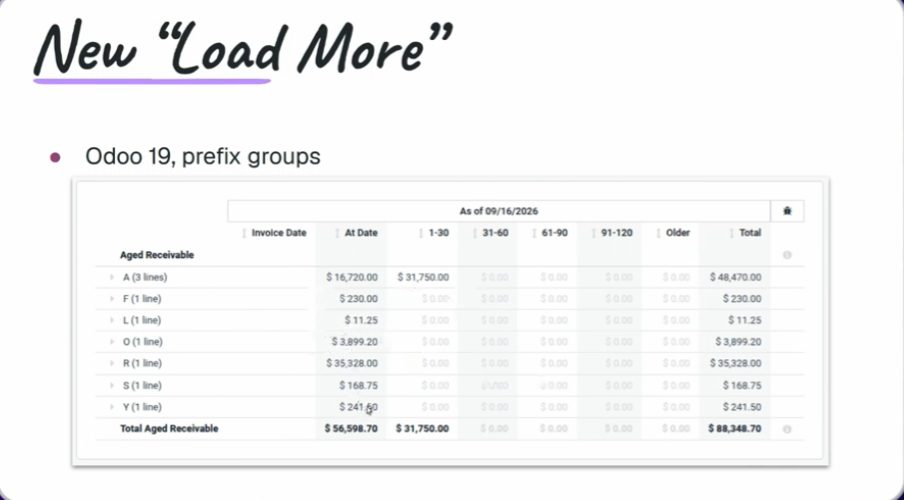
Load more, arriba a la derecha. Sesión Reporting, OX 2026.
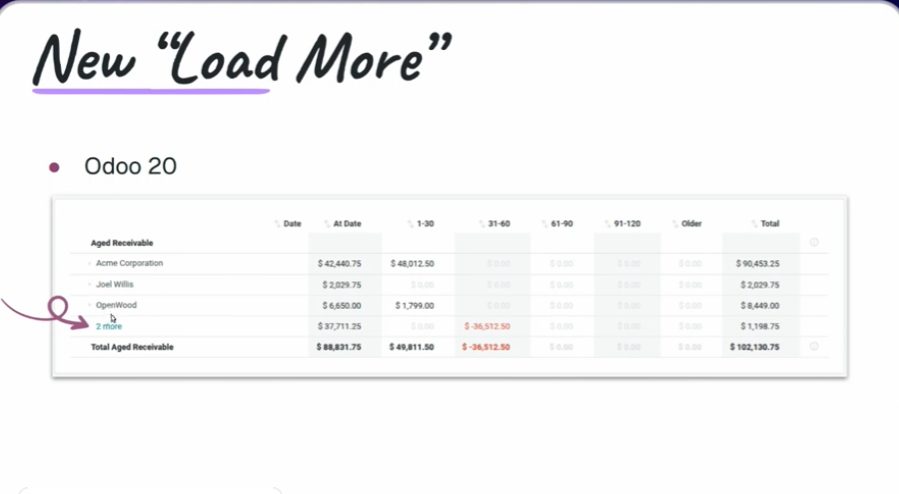
Same query: in 19 some columns get left out; in 20 they fit. Screenshot from the session.
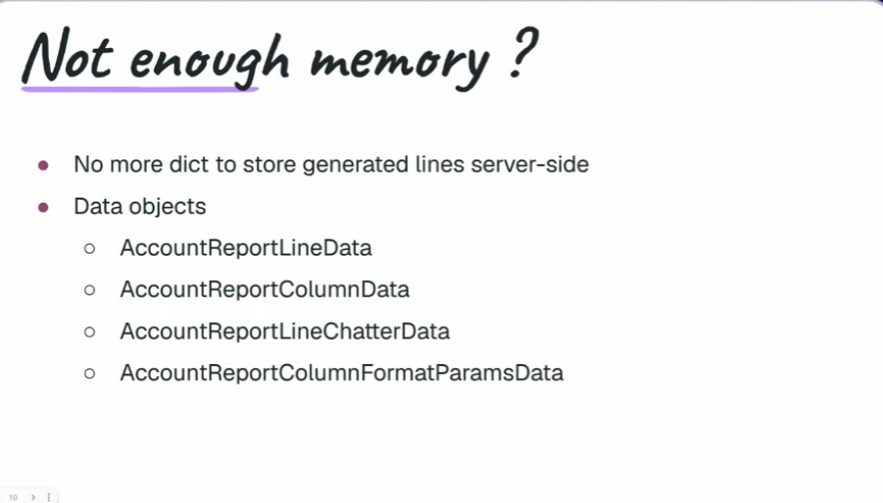
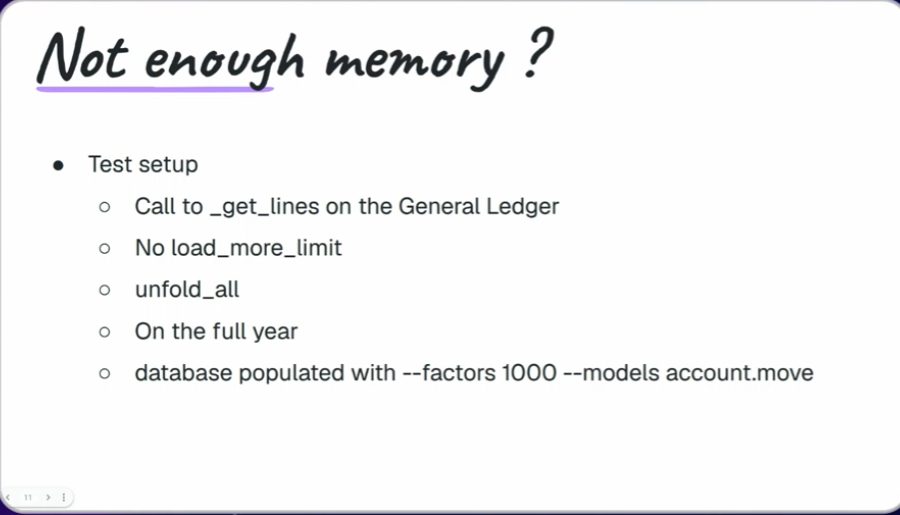
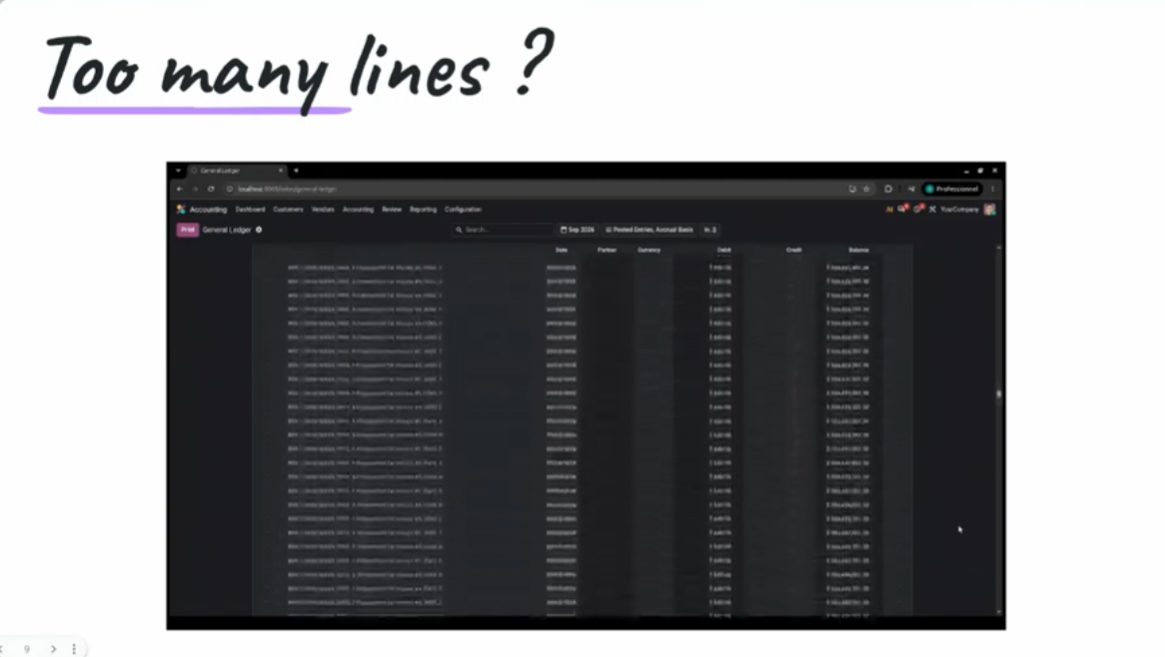
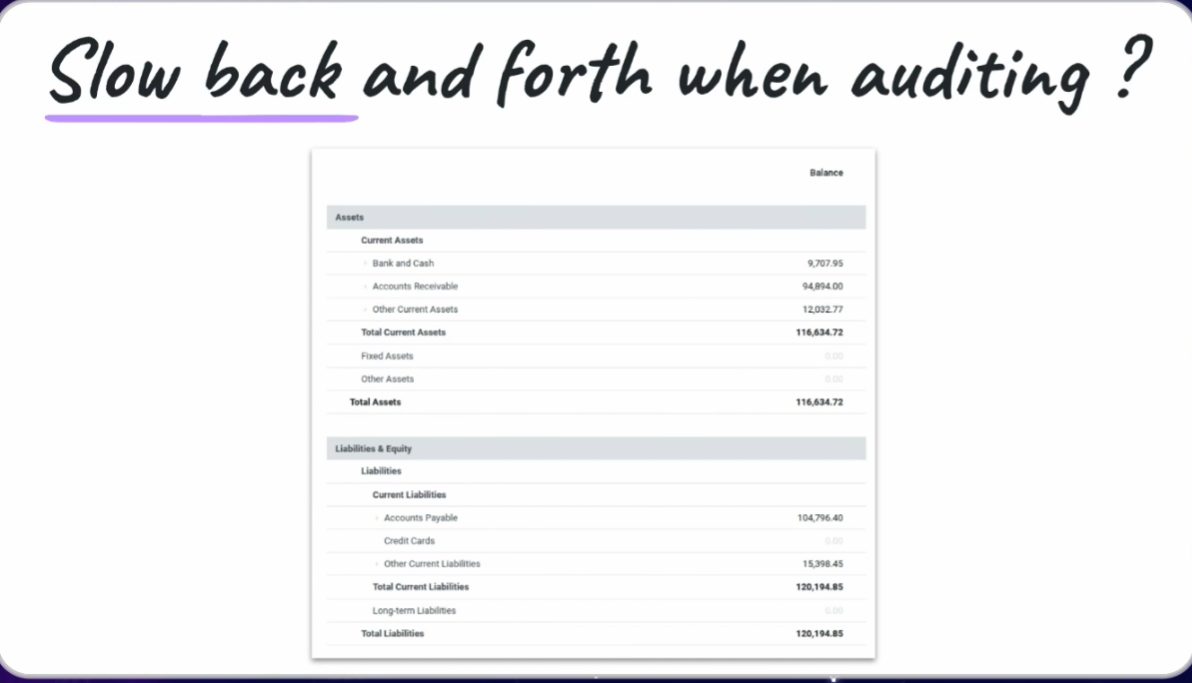
Speed and memory: Odoo drops the dictionaries of 19 and moves to data objects. In the demo, a user report went from 2.5 s to 0.2 s. It affects audit, balances, ledgers and journals. Session figures, not a Contaldia database.
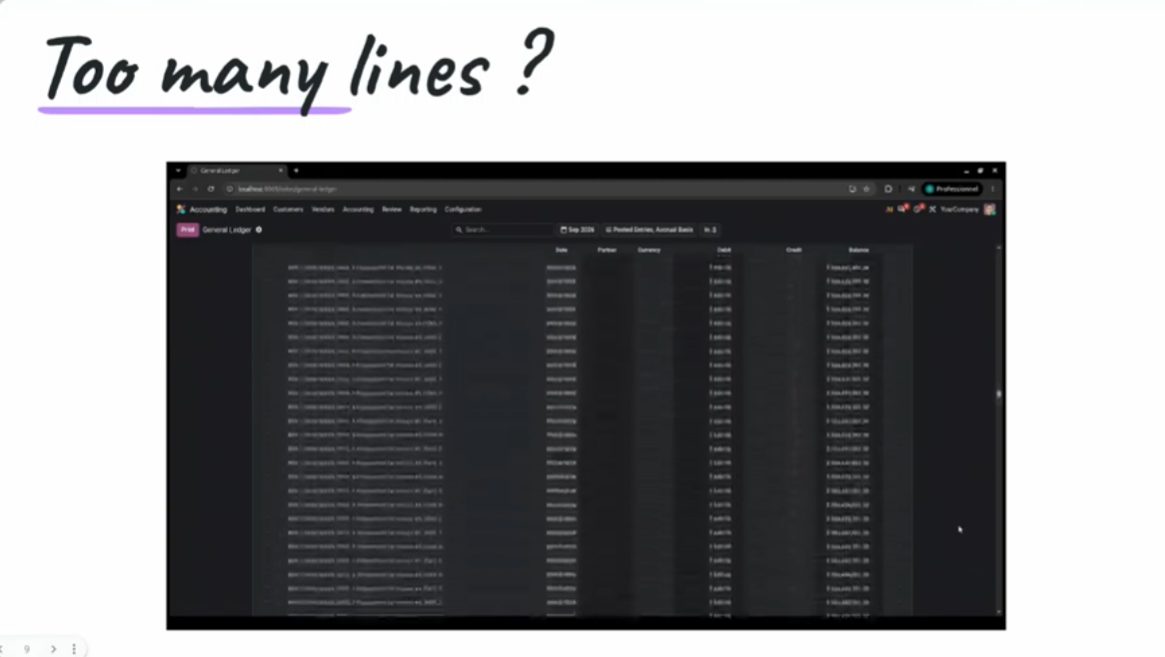
Dictionaries → data objects. Fewer lines, less memory, more speed.
Odoo 19: 2.50 seconds. Same query from the demo.
Odoo 20: 0.20 seconds. Figures from the Reporting session.
Samenvatting van de sessie: 2,5 s in 19, 0,2 s in 20.
La memoria del mismo informe: 4,5 GB en 19 frente a 1,6 GB en 20 (diapositiva de la sesión).
Odoo 19: ~4.5 GB in the demo.
Odoo 20: ~1.6 GB on the same query.
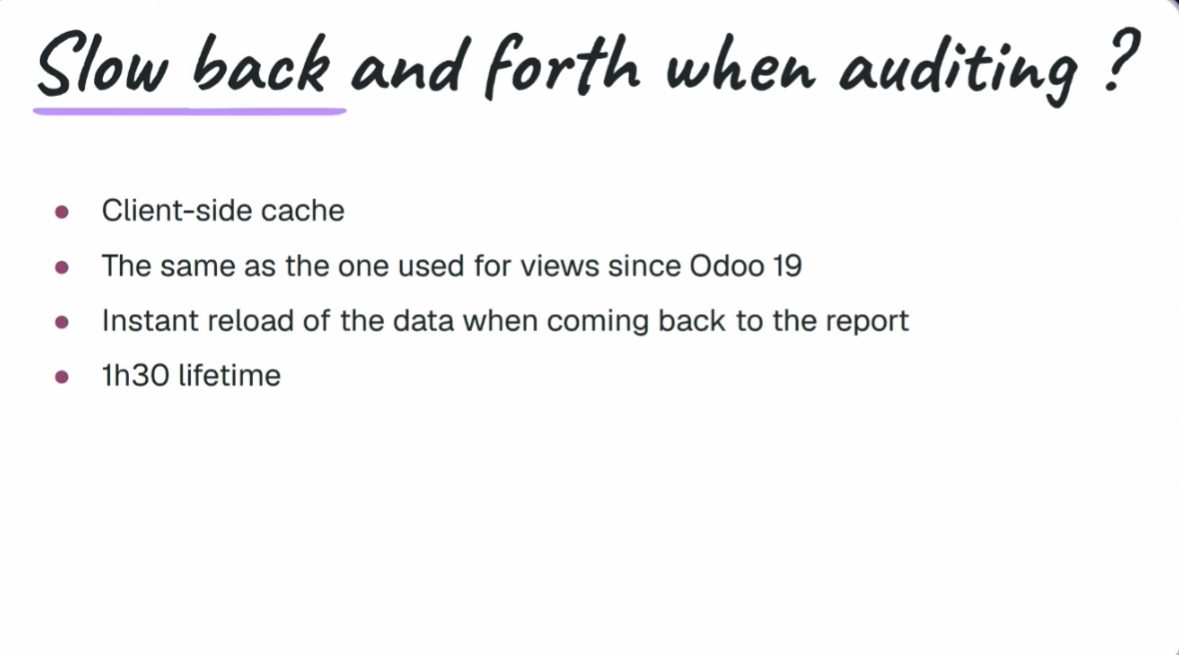
There are snapshots of a report: computed once and reopened without hitting the whole journal again. And line grouping (by journal, by tag, by whatever you ask) goes further than in 19.
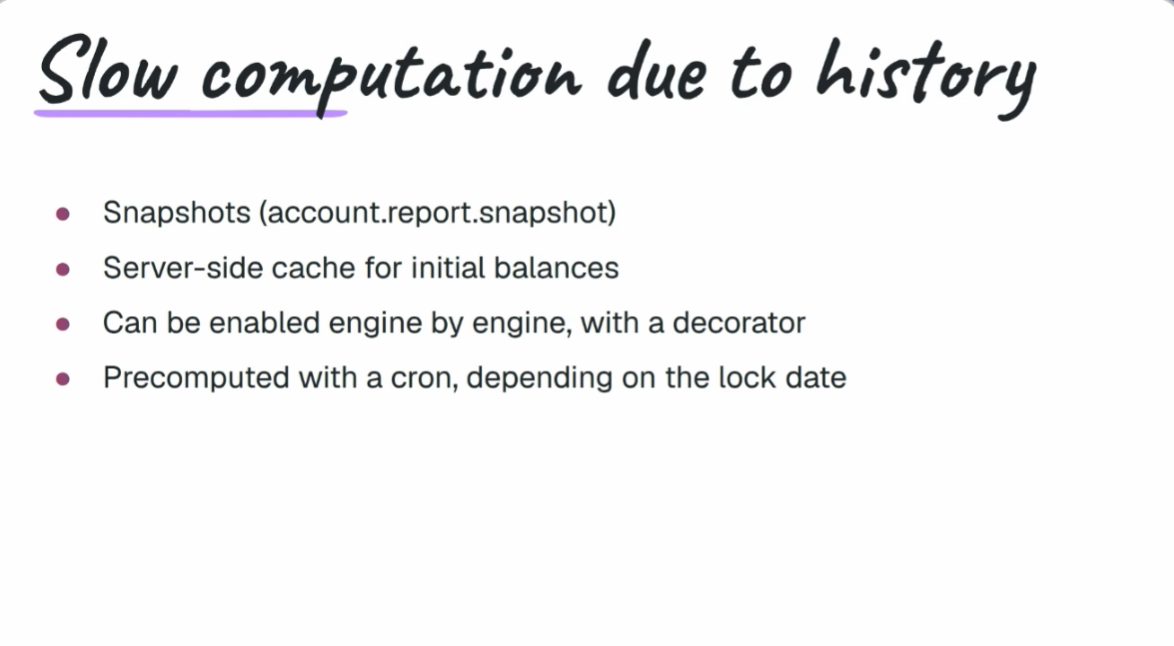
Snapshot list on a report. Reporting session, OX 2026.
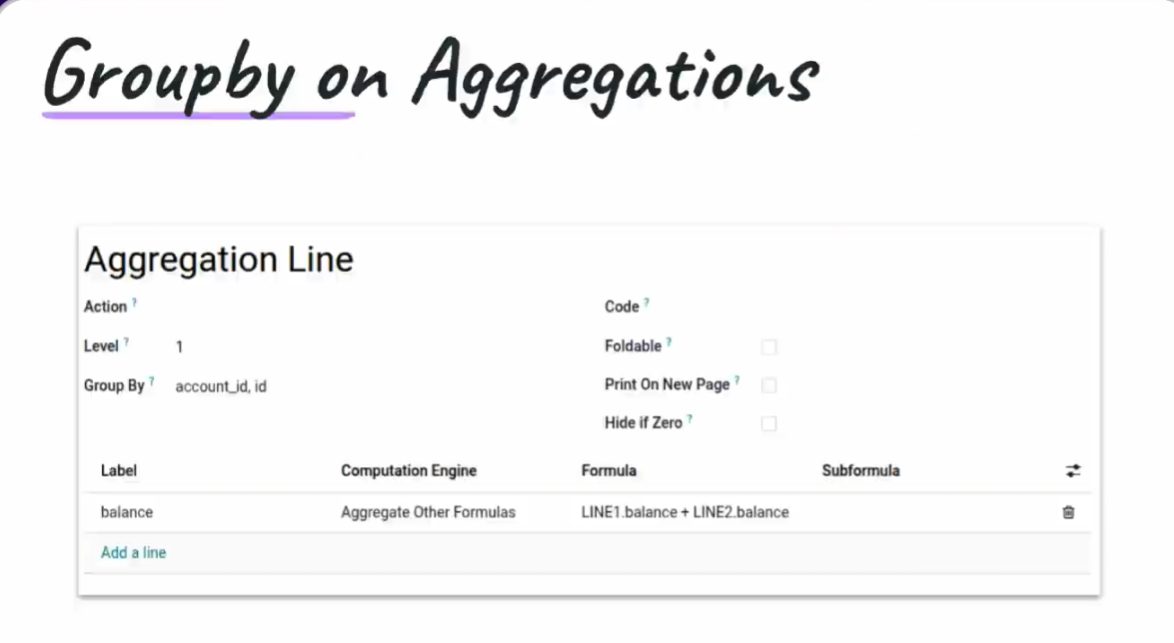
Group by on the report, with more options than in 19.
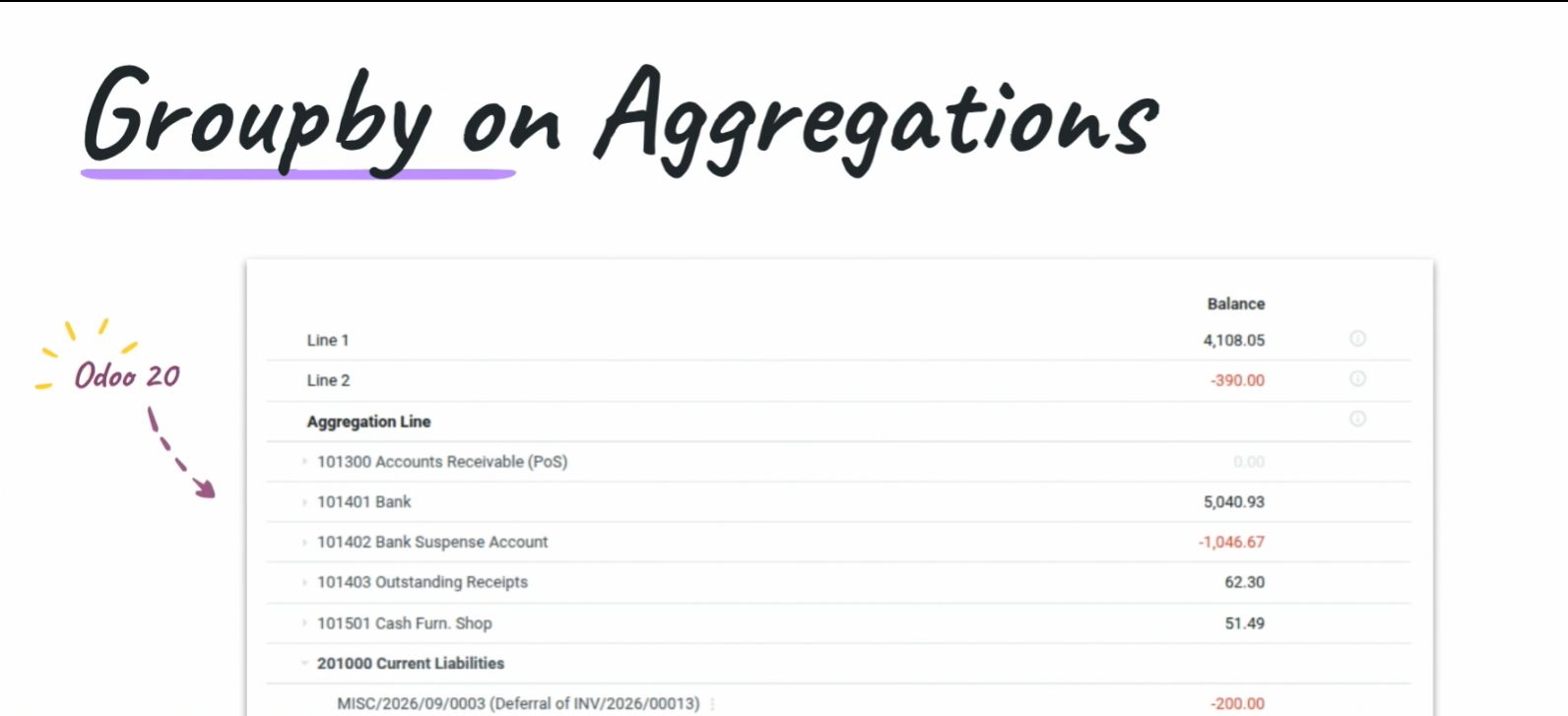
The same report, grouped. Less noise when auditing.
How we will look at this
Contaldia has been running Odoo since 2009. On 1 October, at 16:00, the online updates course: which of this touches closing, the 303 and the bank in Spain, and what is worth waiting for before upgrading a production database.
On 29 October, from 12:00 to 14:00, the full Spanish accounting course on Odoo 20.
Sources: Reporting, Bank synchronization and Hidden gems sessions at Odoo Experience 2026 (Brussels); Contaldia notes. As of 24 Sep 2026 Odoo had not yet published the formal 20 release notes on odoo.com. What only appears in partner blogs we leave as rumour. The figure “49 AI features” does not appear in these sessions: we do not use it.
1 October · 16:00 · online
Odoo 20 updates live. Limited seats. Free for the first 100.